Warden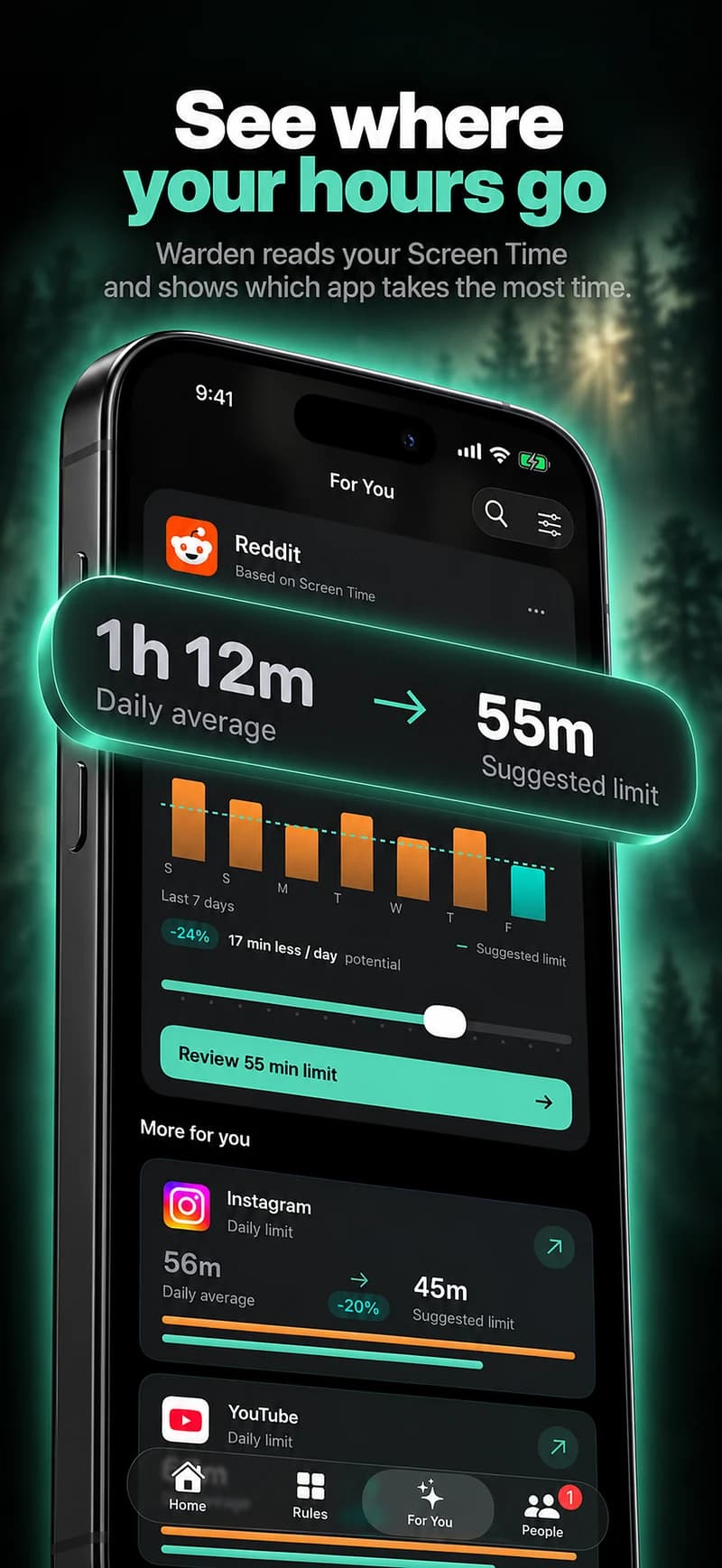
Anchor the plan to something you know
Choose a predictable clock window or an activity you can identify, such as getting dressed, breakfast or the first work task. Do not depend on a blocker automatically knowing when you woke up unless the product has a verified source for that information.
For a simple example, keep selected feeds closed until 8 AM on ordinary weekdays. On a shift-work schedule, fixed morning hours may be inappropriate; use a shorter session at the time that actually begins your day.
Separate essential phone use from browsing
List what you need before leaving: alarm, messages, travel, weather or a work credential. Keep those accessible using the supported selection and exception controls. A morning rule that blocks your bus ticket can make the whole plan feel impractical.
Then choose the apps that tend to divert you after the necessary task. The aim can be “get ready before checking feeds,” not “prove that I can avoid all technology.” This distinction keeps the rule connected to a useful result.
Prepare an easy first action
Set out the book, clothes, breakfast items or task you want to begin. Consider where you charge the phone so opening the next app is not the most visible thing to do after turning off the alarm.
Keep the replacement modest. An elaborate morning routine adds decisions before the day has started. A short period of getting ready without a feed can be a complete goal by itself.
Review what the data can actually show
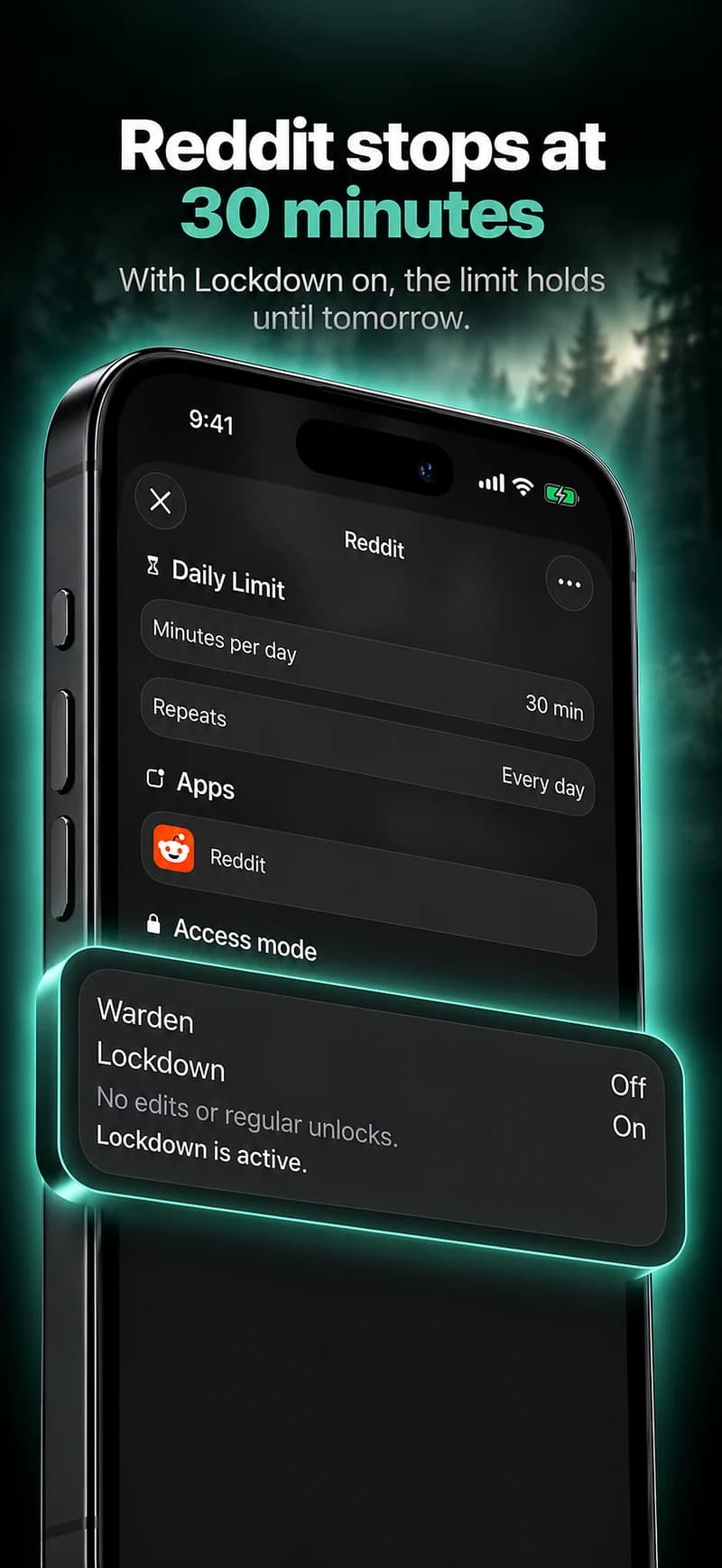
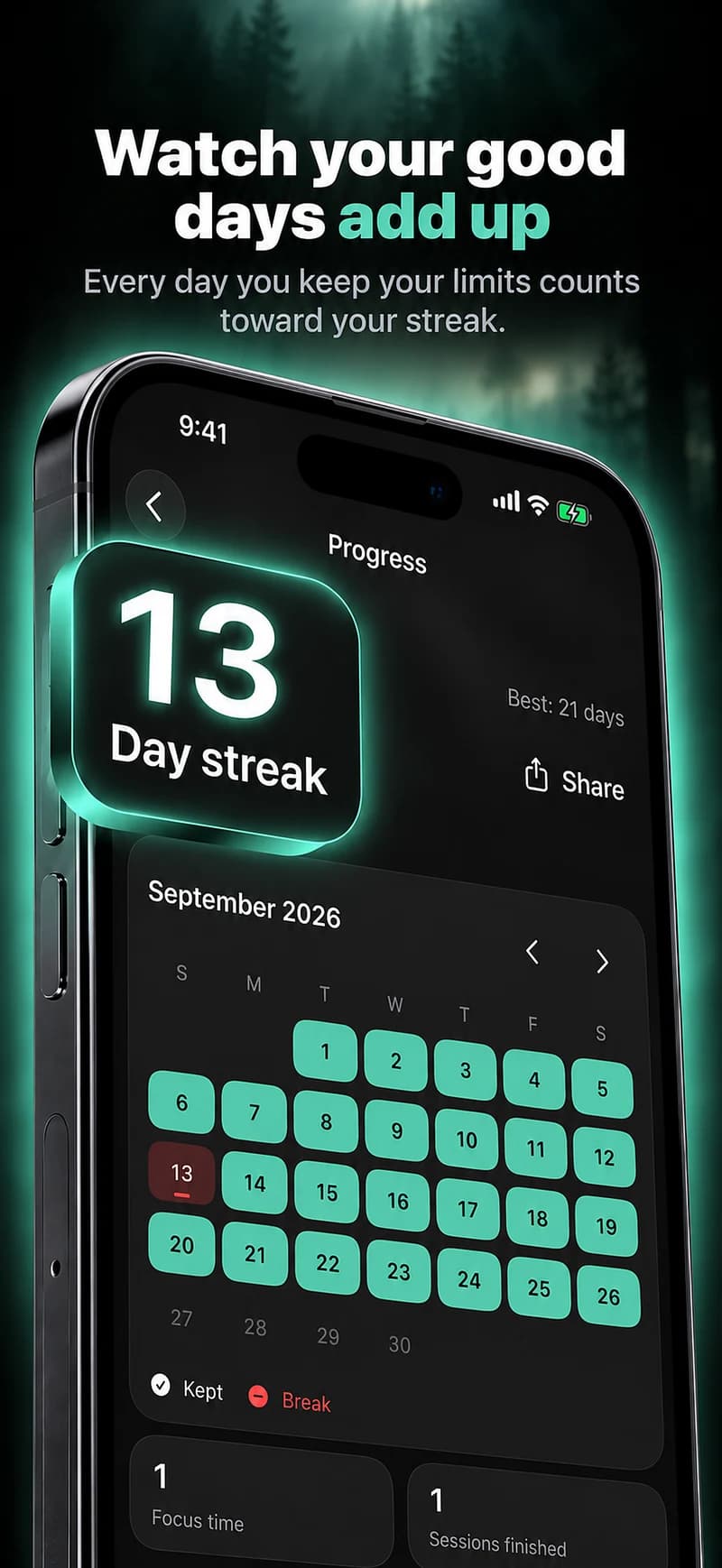
Use available app readings to check whether the selected services stayed out of the intended clock window. A block recorded from 7 to 8 establishes a protection interval, not that you were awake for all of it.
Warden should not label that “your first hour after waking” without evidence. Review the actual time, the useful exceptions and whether the morning felt less interrupted. Adjust the rule for weekends or changing work hours rather than extending it indiscriminately.
Choose a real first task
A morning rule might cover selected social apps between your usual breakfast and departure time. Leave your alarm, transport, communication and accessibility needs intact. Decide on one thing to do first, such as making breakfast or getting dressed, rather than creating a long checklist before the phone becomes available.
Review the local clock hours when your schedule changes. A weekday routine may not fit a weekend or a night shift. Unless another data source confirms waking, a rule starting at 7 AM is a 7 AM block, not proof that you stayed off your phone for the first hour after waking.