 Warden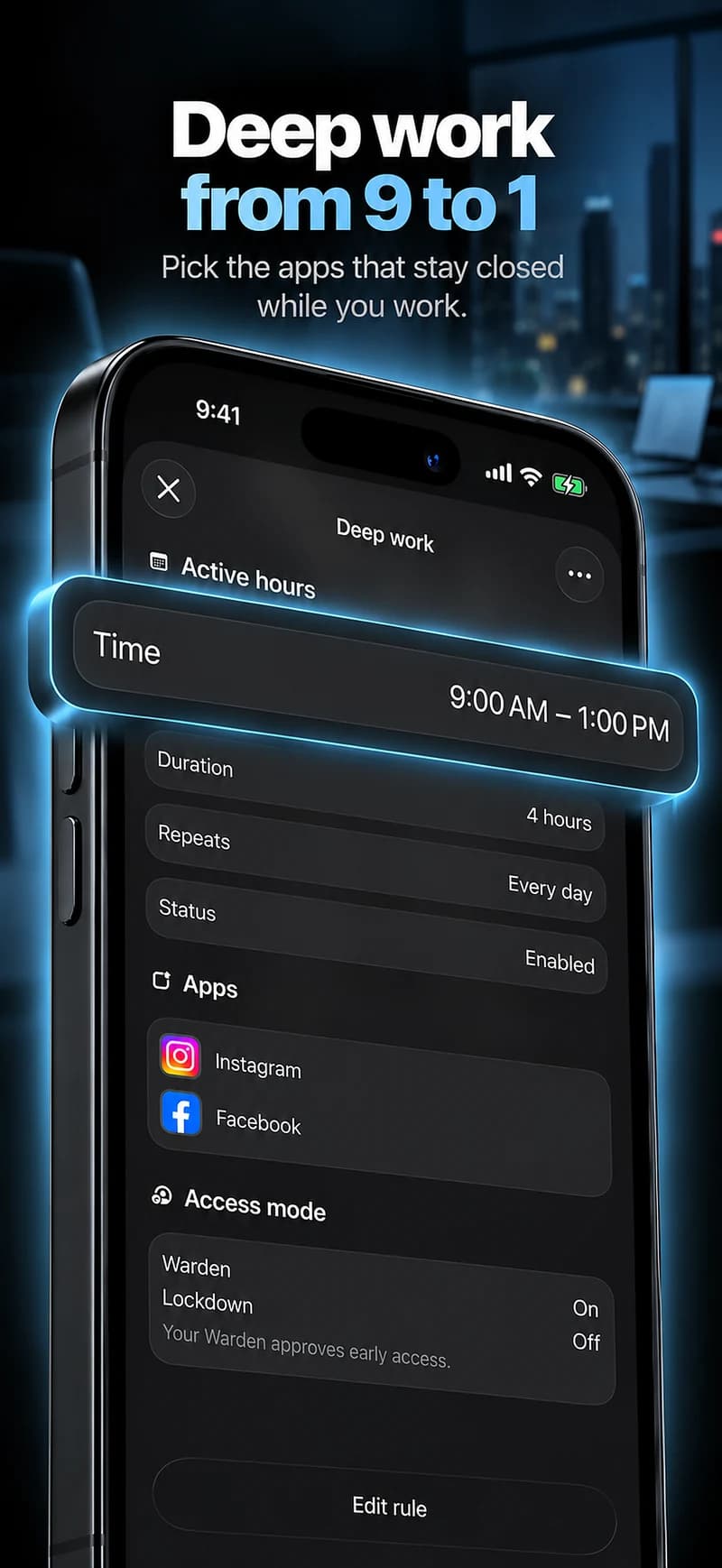
Set a limit in Apple Screen Time
The settings depend on your iOS version. These steps are for your own iPhone; use Apple’s family setup when managing a child’s device.
iOS 27: Time Allowances
Open Settings > Screen Time > Time Allowances. Turn on App & Website Activity if asked.
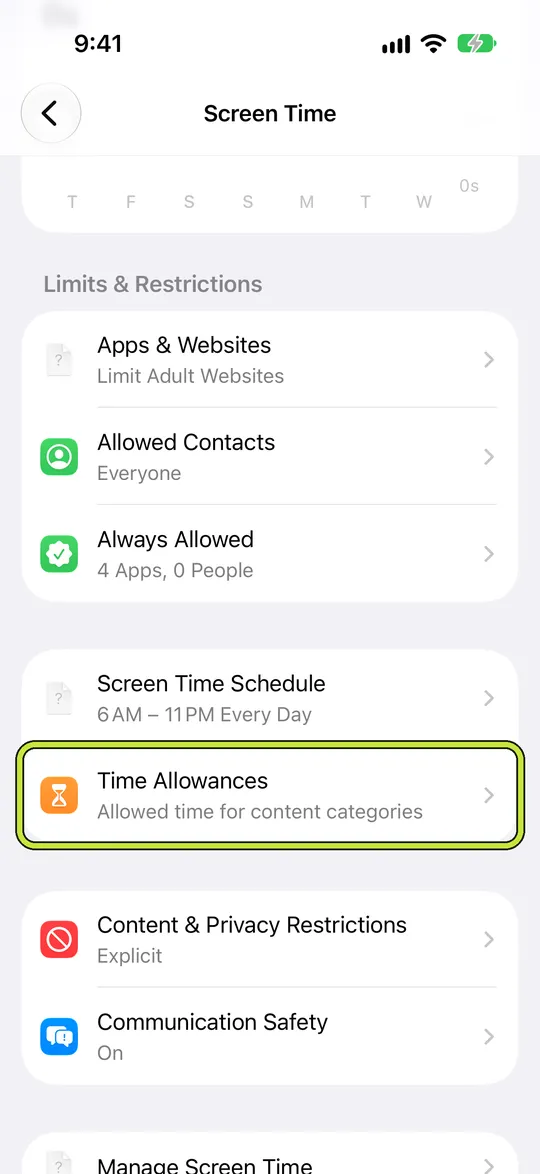
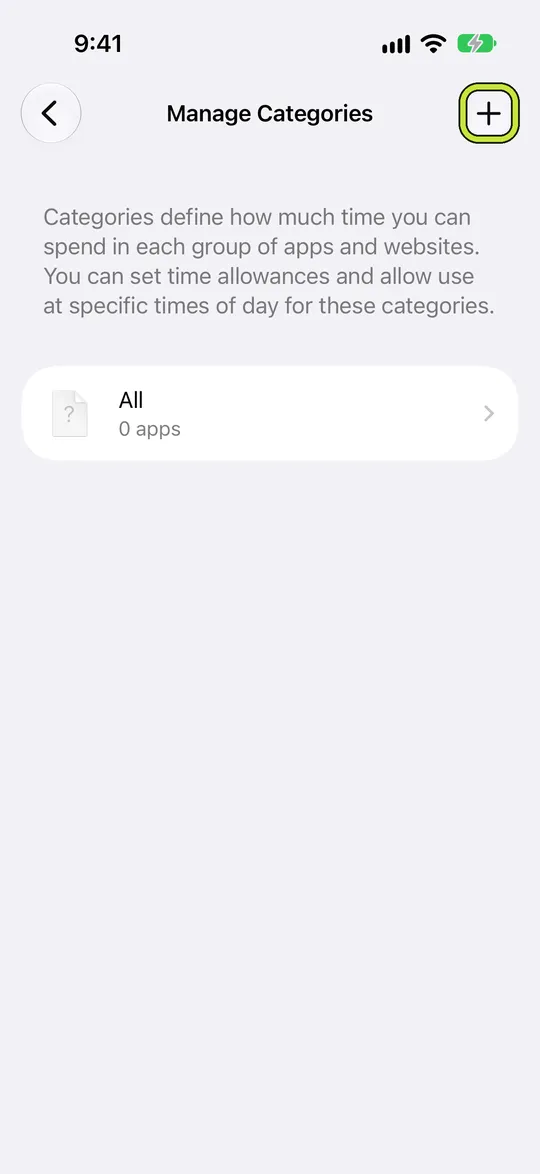
Set the daily total, then open the relevant category and set its allowance. Use Manage Categories to add a category.
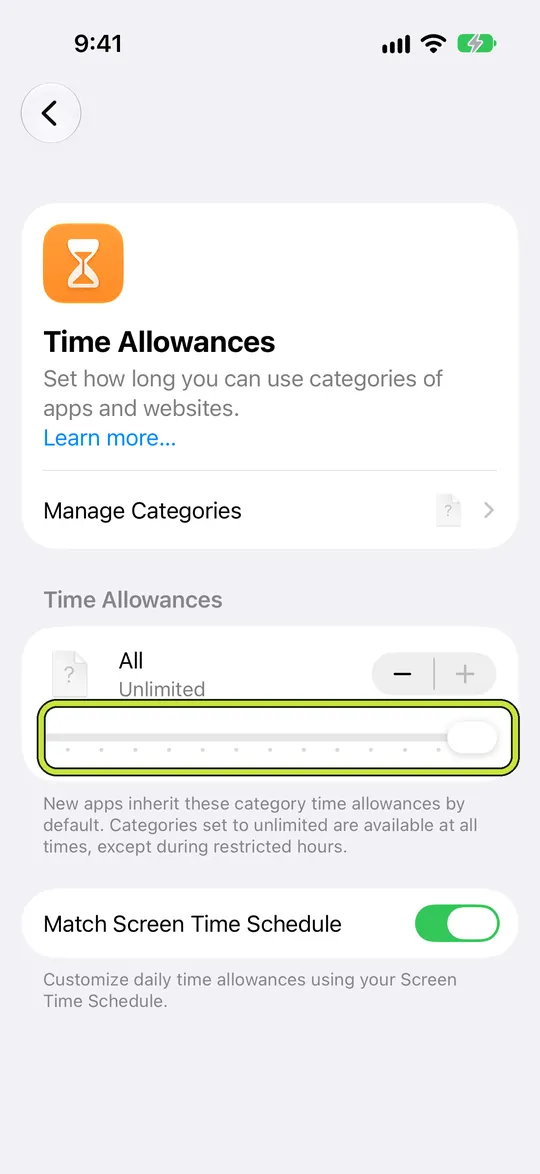
Check which apps are included. A category allowance is shared across its apps, not granted separately to each one.
For specific hours, use Screen Time Schedule. Keep essential apps and contacts in Always Allowed.
iOS 26: App Limits
- Open Settings > Screen Time > App Limits, then tap Add Limit.
- Expand a category to select an individual app, or select the category to limit it as a group.
- Tap Next, choose the time, and use Customize Days for different daily limits. Confirm with the Done button.
When several apps share one limit, they share the time too. Check how your setup grants extra time before relying on the block.
Warden for iPhone
Set it up without adding unnecessary rules
Daily limits, schedules and focus sessions
Install Warden and connect Screen Time when iOS asks. Then open Rules and tap the plus button.
Choose the apps or scope involved in this particular interruption. Use an allowance for total use, a schedule for recurring hours, or a session for a one-off task.
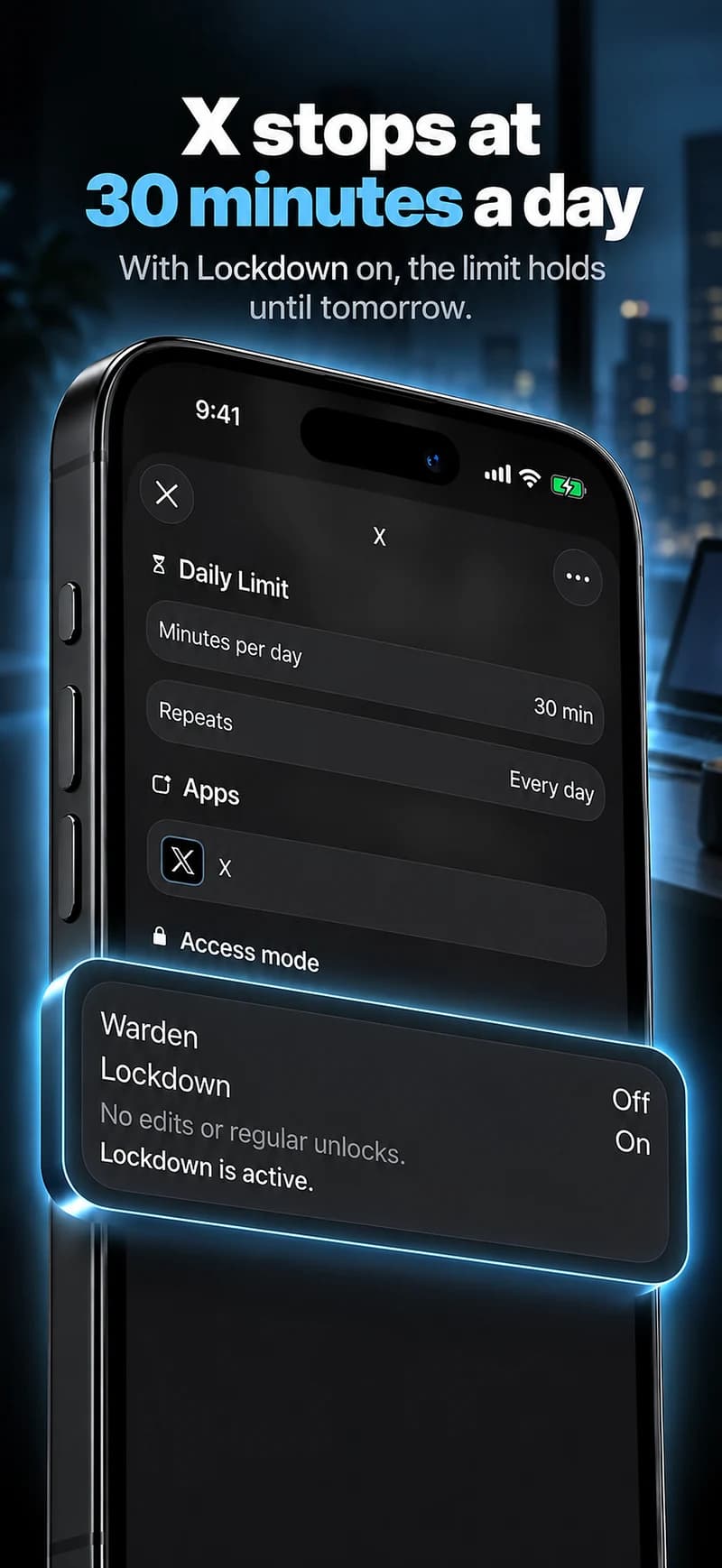
What Standard, Warden and Lockdown do
Choose Standard when you want to manage the limit yourself. Choose Warden when a person you trust should review early-access requests. Choose Lockdown to keep ordinary early unlocks off until the block ends.
Choose the access mode, then hold the save button to set the rule. Try a short block before using a long one. Emergency access remains separate from ordinary unlock requests.
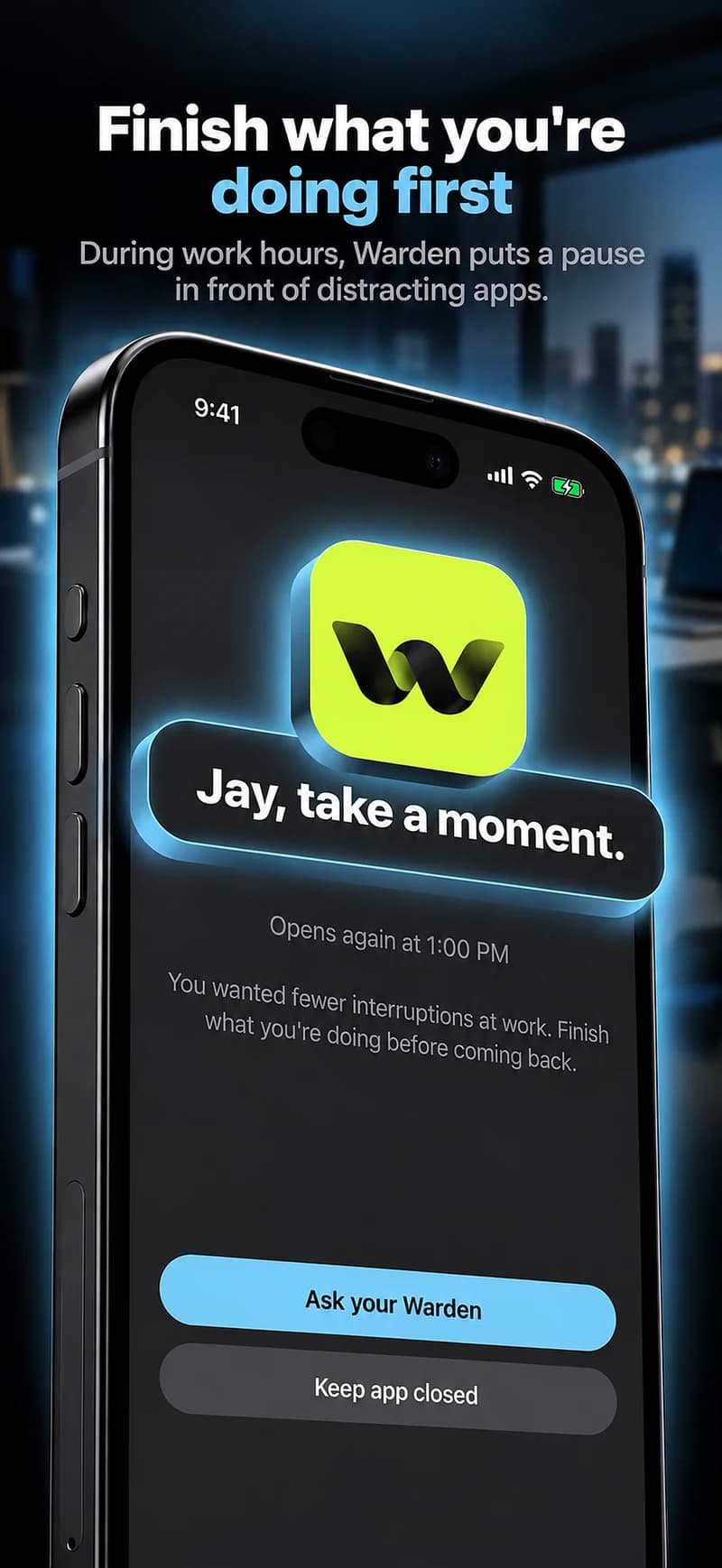
How Warden approval works
Choose how many minutes you need, add a note and hold to send. If nobody answers within 30 minutes, the request expires and the app stays locked.
An approval applies to the scope and time shown in the app. A declined or unanswered request does not lift the block. Emergency access remains a separate option on your device.
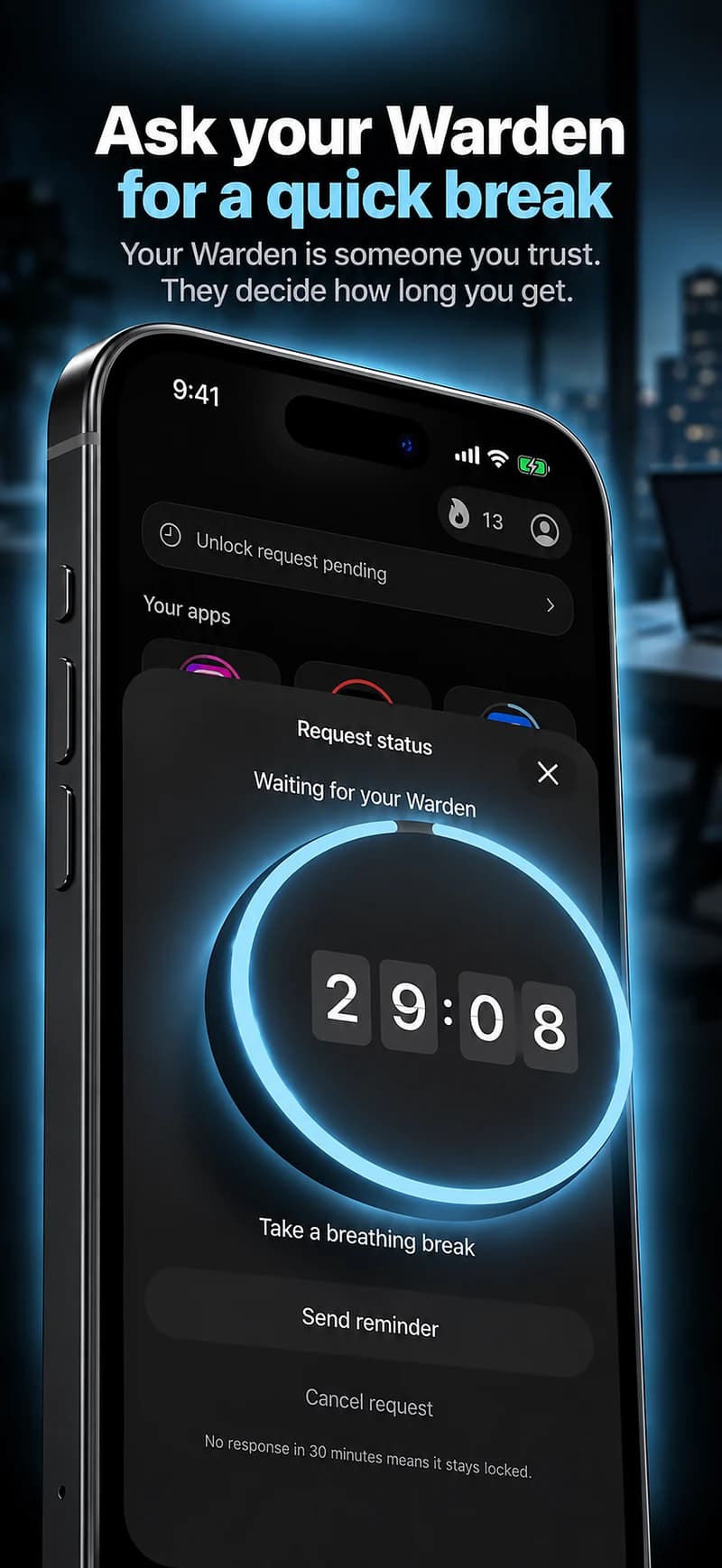

Compare the options
Apple Screen Time
Use a daily allowance for repeated timeline checks, or a schedule for hours when X should stay closed. Apple Focus handles notifications separately.
Deleting the app
Removing X from your phone does not remove your account or block x.com. It may be enough when the app icon is what prompts you to check.
Warden
Warden adds a choice about early access: manage it yourself in Standard, ask a trusted person in Warden mode, or use Lockdown to keep ordinary early unlocks off while the rule is active. Emergency access is separate.
Example: check X after the morning meeting
Block X from 9 AM to 11 AM on weekdays. Keep any work channel you need available. Add a separate notification setting if alerts still interrupt the meeting.
Account for work and timely information.
If X is part of your work, identify the windows when you need it. An all-day block may create predictable requests rather than useful protection.
Check whether notifications are the trigger. Apple Focus can manage selected interruptions, while an app-access rule addresses opening the feed yourself. Configure each for its own job.