Skip to content

Everyday focus

How to stop constantly checking the news on your phone

Checking the news can feel like a duty, which makes the habit hard to question. But refreshing a headline every few minutes rarely tells you more than reading once or twice a day. The fix is not to stop caring; it is to decide when you read the news and let your phone stay quiet the rest of the time.

In this guide

Decide how you want to stay informed

Pick one or two times a day and one or two sources you trust. A morning read and an evening summary cover most days. If a daily newsletter or a single radio bulletin fits your life better, that can replace the app entirely.

Turn off breaking-news alerts

Breaking alerts turn every update into an interruption. On iPhone, open Settings, then Notifications, tap each news app and turn off Allow Notifications, or move the app to Scheduled Summary so its alerts arrive at the times you read the news anyway.

Government alerts such as Emergency Alerts are set separately at the bottom of the Notifications screen, so turning off a news app does not switch them off.

Reference: Apple: Change notification settings

Make the news harder to stumble into

  • Remove news widgets from your Home Screen and Today view.
  • Move news apps off the first page, into the App Library.
  • If you read the news in a browser, clear the pinned or frequently visited news sites.

Give the news a window, and close it outside

Once you know when you want to read, block news apps outside that window, for example everything except 7 to 7:30 in the morning and 6 to 6:30 in the evening. Add the news websites you use as well, since a blocked app is one search away in Safari.

Apple's Screen Time Schedules set when app categories are available. In Warden you choose the exact news apps and websites, and the rule can run in Lockdown on the days you know you will be tempted.

How to stop doomscrolling on your iPhone

Reference: Apple: Screen Time Schedules and Time Allowances

Editing a schedule that blocks apps from 10:00 PM to 7:00 AM every day

When something big is happening

On a day when the news really matters to you, do not scrap the plan; widen it. Allow one check an hour, from one source, and go back to your usual windows once the story settles. Keep Emergency Alerts on, since they cover the kind of news that needs you to act.

Example: 40 refreshes before lunch

Screen Time shows a news app opened around 40 times before noon on weekdays, usually for a minute or less. The plan: turn off its alerts, remove the news widget, and block the app and its website outside 7 to 7:30 AM and 6 to 6:30 PM on weekdays.

After two weeks, compare the morning pickups. If the count has dropped and you still know what happened in the world, keep the windows. If you felt out of touch, add a single lunchtime check rather than dropping the rule.
Set it up without adding unnecessary rules

Daily limits, schedules and focus sessions

Install Warden and connect Screen Time when iOS asks. Then open Rules and tap the plus button.

Choose the apps or scope involved in this particular interruption. Use an allowance for total use, a schedule for recurring hours, or a session for a one-off task.

What Standard, Warden and Lockdown do

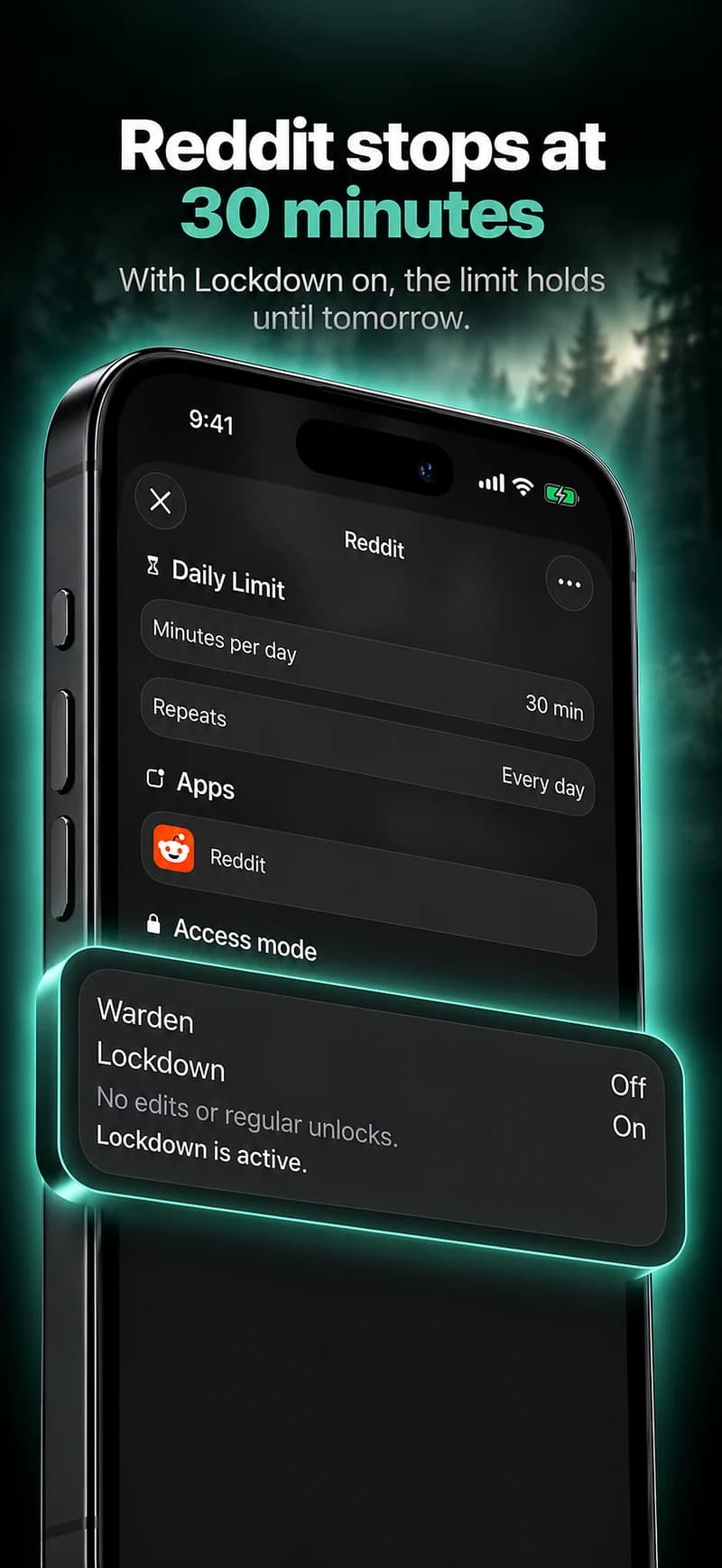
Choose Standard when you want to manage the limit yourself. Choose Warden when a person you trust should review early-access requests. Choose Lockdown to keep ordinary early unlocks off until the block ends.

Choose the access mode, then hold the save button to set the rule. Try a short block before using a long one. Emergency access remains separate from ordinary unlock requests.

How Warden approval works

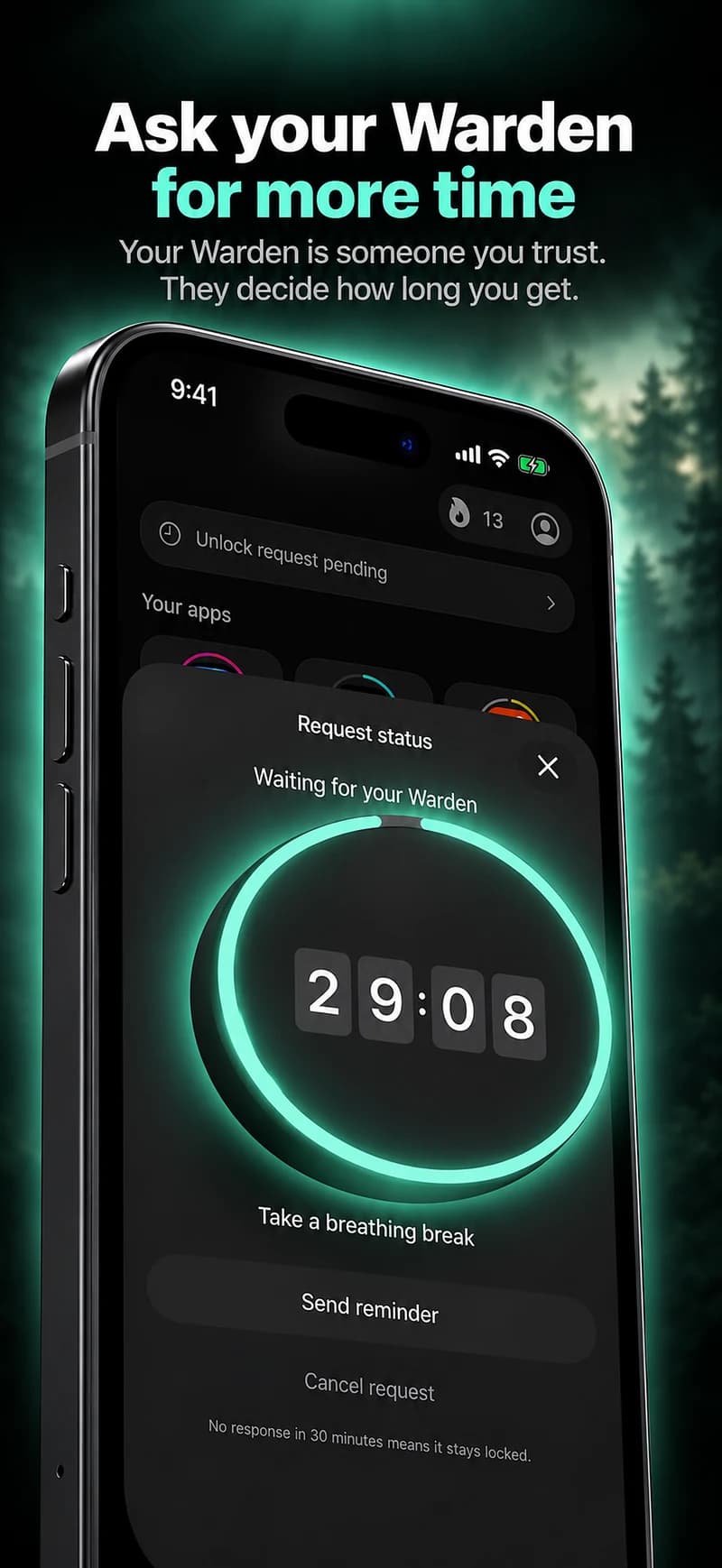
Choose how many minutes you need, add a note and hold to send. If nobody answers within 30 minutes, the request expires and the app stays locked.

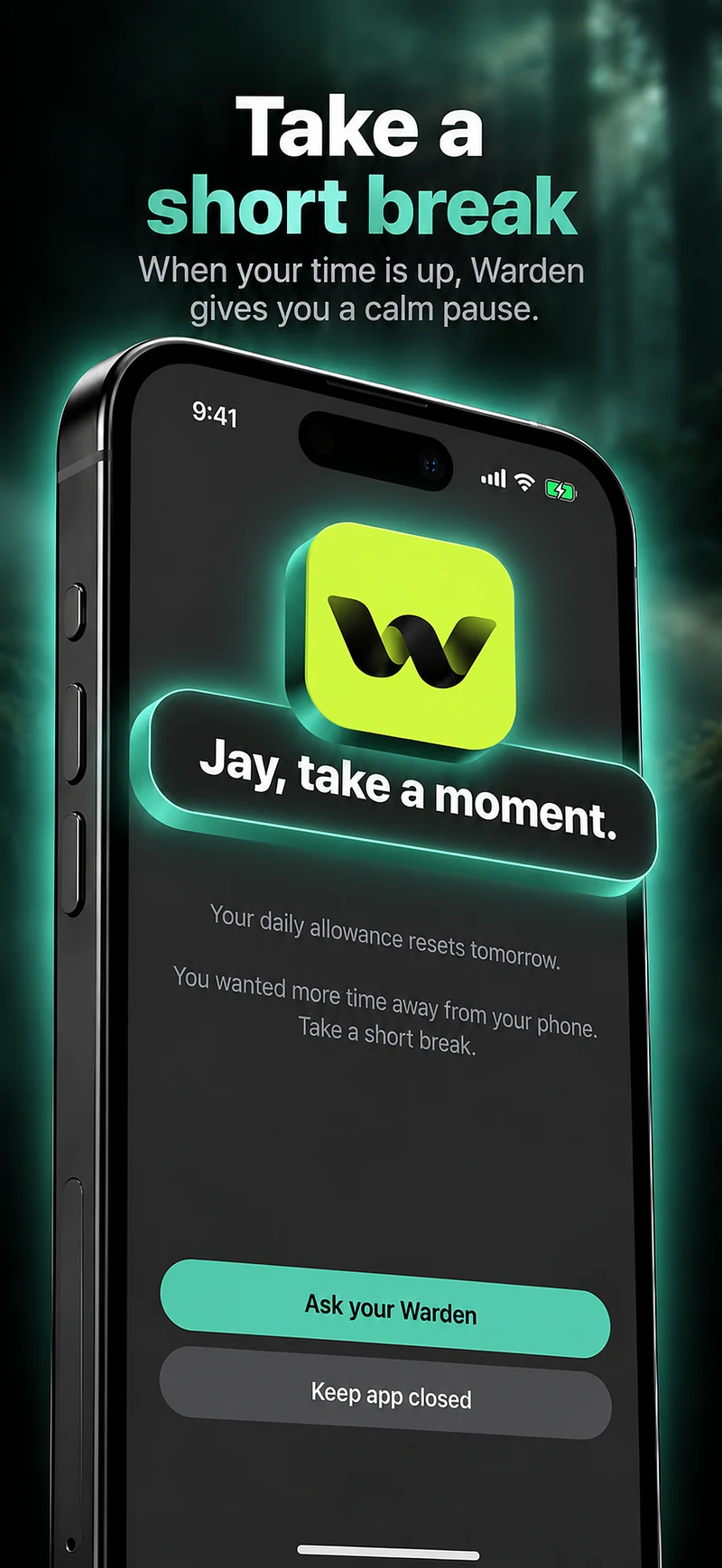
An approval applies to the scope and time shown in the app. A declined or unanswered request does not lift the block. Emergency access remains a separate option on your device.

Common questions

How often should I check the news?
There is no right number, but once or twice a day from a trusted source covers most news. Pick fixed times so that checking becomes a choice rather than a reflex.
Can I block news websites as well as apps on iPhone?
Yes. Add the websites to the same rule as the apps, because a blocked app is often one search away in Safari. Test the rule in Safari before you rely on it.
Will I miss emergency news if I block news apps?
Government alerts such as Emergency Alerts are managed separately from news apps in Settings, then Notifications. Keep them turned on.