 Warden
Start with the restriction you actually need
For a daily allowance, choose how much total time an app gets. For a work or bedtime window, choose when it should be unavailable. A timer for one session is different again. Avoid starting with “block everything forever,” because that does not distinguish an unwanted feed from a tool you need.
Write the outcome as a concrete rule: “Keep short-video apps closed from 9 to 11,” rather than “Make me productive.” A clear rule is easier to test and easier to explain when an exception is reasonable.
Understand Apple’s built-in options
On iOS 27, start in Settings > Screen Time > Time Allowances. For a recurring block, open Screen Time Schedule. On iOS 26, use App Limits for daily budgets and Downtime for a schedule. Check the selected apps and how you can request or grant extra time.
Removing a Home Screen icon is not the same as denying access. Focus settings manage interruptions and presentation, while Guided Access serves a different single-app use case. Choose the control that matches the problem instead of layering several unrelated settings.
Reference: Apple: schedules and app allowances
Choose how ordinary early access works
Self-managed access is useful when you only need a reminder. A trusted-person arrangement is useful when you want an exception reviewed by someone else. A hard stop is useful when you want ordinary early access unavailable until the end.
Test the difference using a short block before relying on a long one. Confirm the displayed end time, the selected apps and how an already-running rule can be edited. Do not infer that a lock icon means every form of account or device change is prevented.
Keep safety outside the challenge
Keep essential communication and access needs in mind when choosing apps. A block should not become a reason to delay urgent help or hand over an account password. In Warden, emergency access remains separate from ordinary early unlocks.
A provider should explain permission loss, unavailable reports and network failures without calling its product unbreakable. When a test behaves unexpectedly, capture the rule’s time and status for support instead of immediately making the restriction broader.
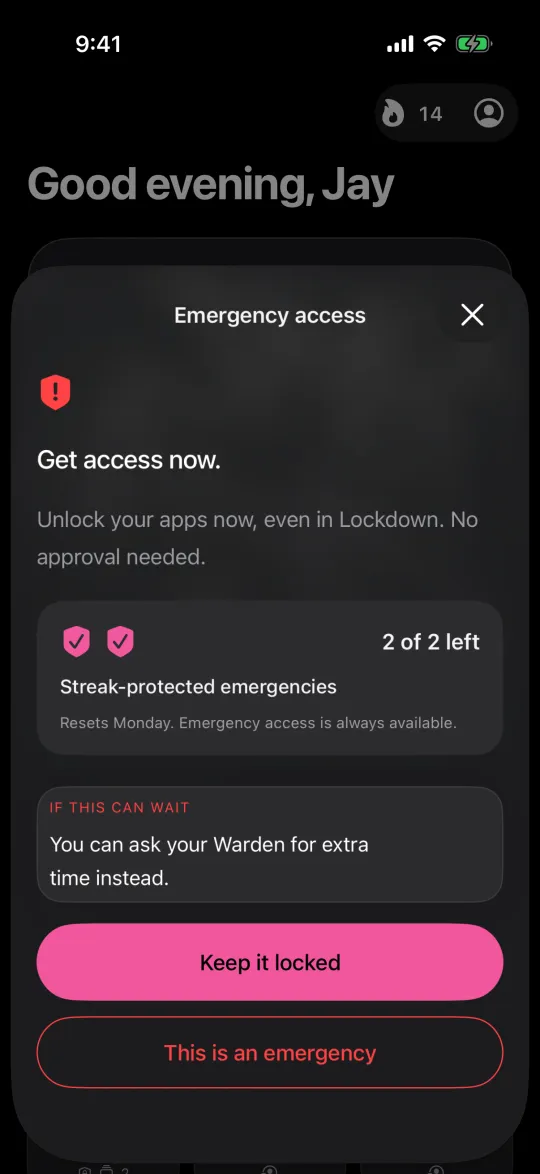
Example: a hard stop with a safe test
Pick one nonessential app for a short test while no urgent task is pending. Before starting, note the end time, the chosen access arrangement and any apps you have deliberately kept available. Confirm the target app is actually blocked, rather than relying only on the countdown inside the blocker.
After the test ends, check that ordinary access returns. If your next plan needs a much longer window, first review how emergency access, account actions and permission changes behave. Do not remove safeguards to make a rule feel more serious. A reliable, understandable plan is more useful than claiming the restriction is physically impossible to escape.



