Warden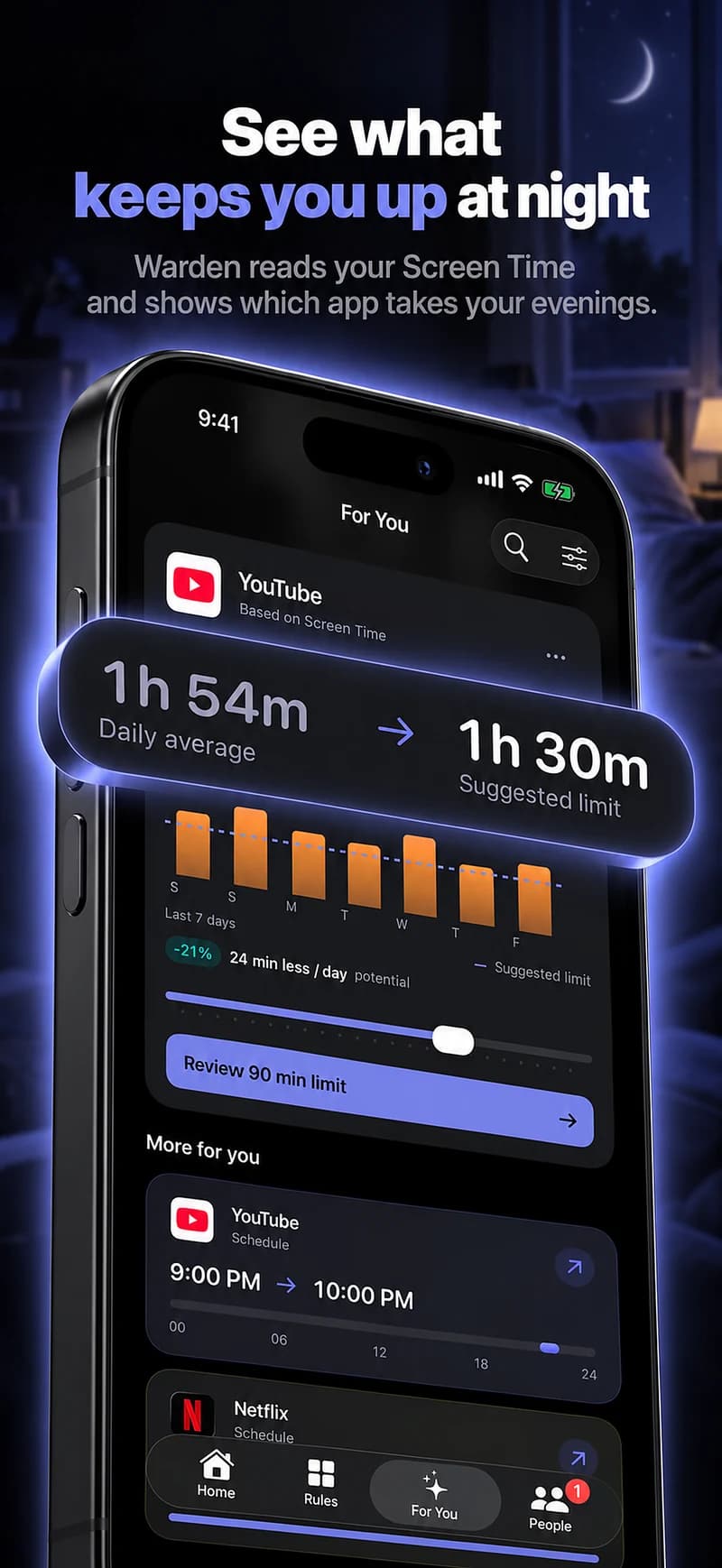
Work backward from a realistic end to the day
Identify when you usually intend to stop browsing, taking account of work, family and shift patterns. A fixed schedule chosen for someone else’s routine can create unnecessary exceptions. Start with the period that actually gets extended by your selected apps.
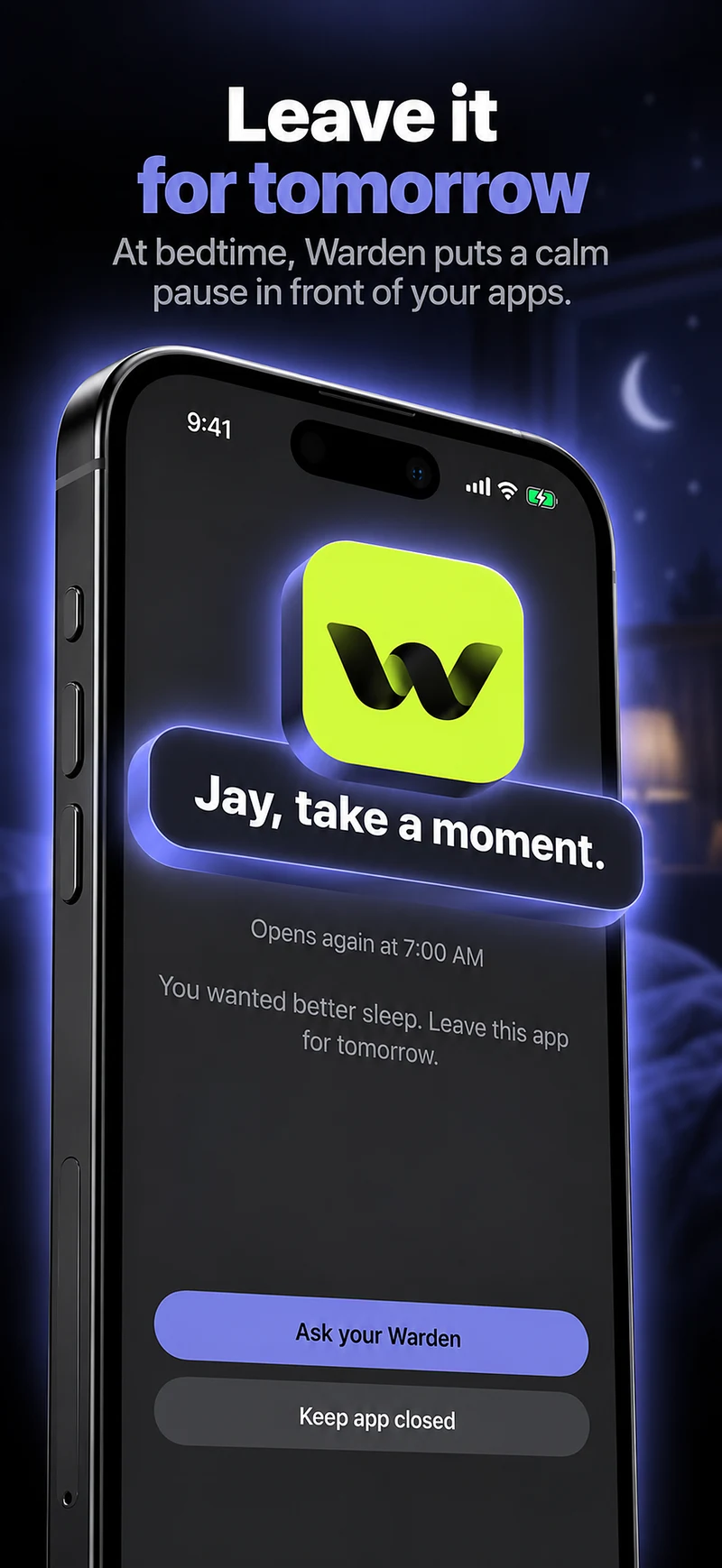
For example, you may want feeds unavailable during the last half-hour before your planned bedtime, while keeping an audio app, alarm and important contacts available. The exact duration is a personal starting point, not a promise of better sleep.
Choose the right control for the problem
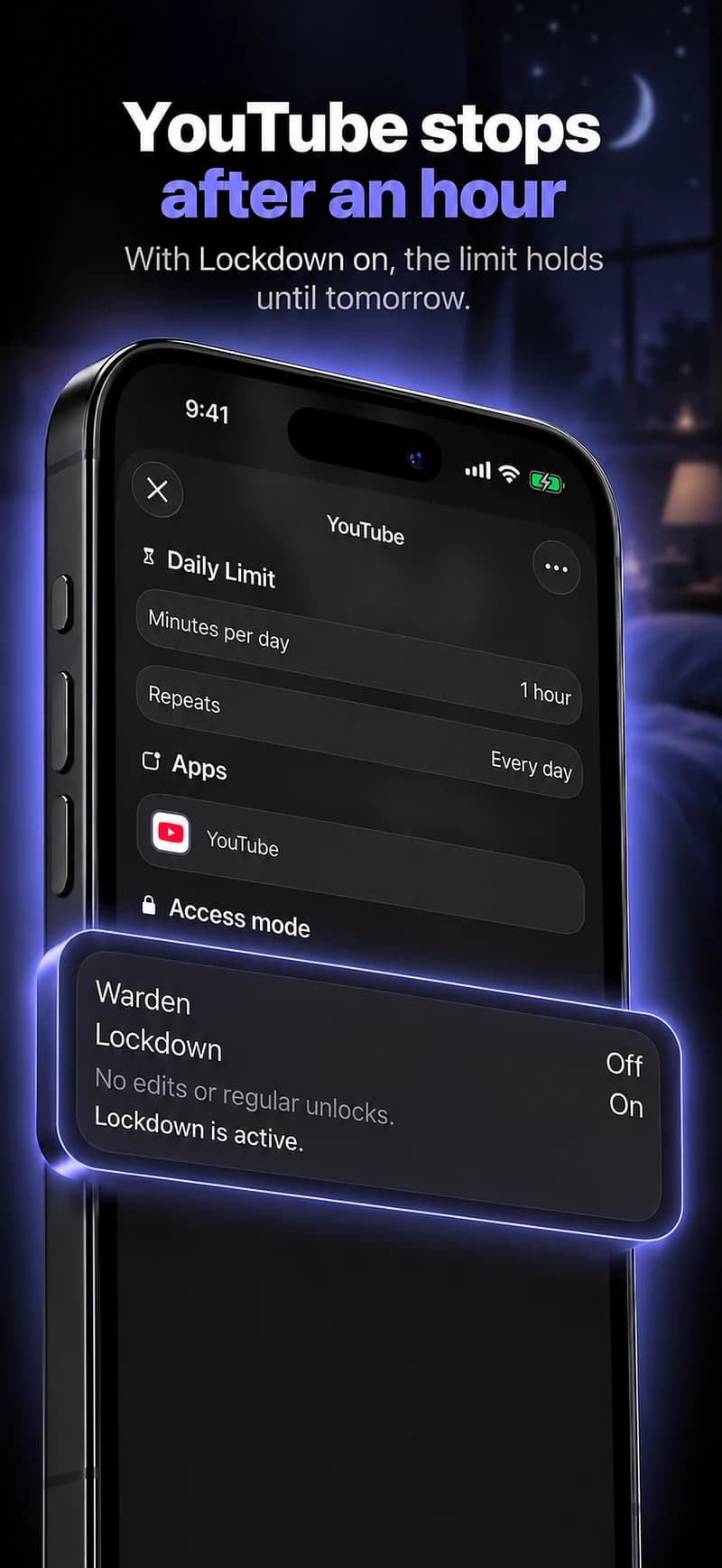
Notification management and access restrictions are different. Apple Focus can reduce selected interruptions; an app limit or scheduled block addresses opening the app itself. You may need one or both depending on whether the interruption arrives as an alert or as a deliberate check.
Check the combined setup on the device. A notification rule should not accidentally silence a person you need to hear from, and an app block should not remove essential communication during an overnight window.
Reference: Apple: set up a Focus
Make the stopping point practical
Decide what you will do when the selected apps close: prepare for tomorrow, read, listen to something already chosen, or leave the phone aside. Keep the alternative simple enough to begin when tired.
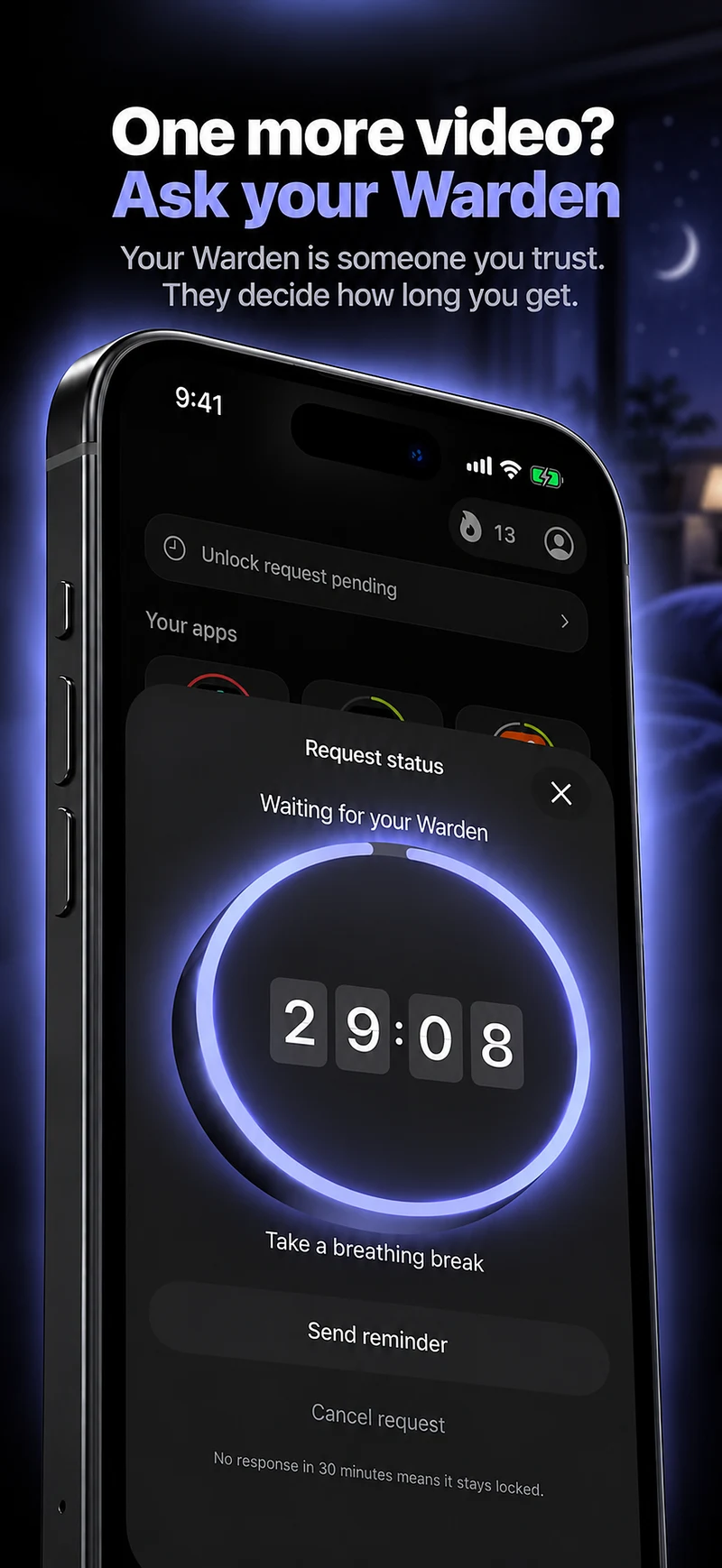
If you need the same exception every night, inspect the selection or start time. Repeatedly requesting a legitimate tool can mean the rule is too broad rather than that you need a stricter arrangement.
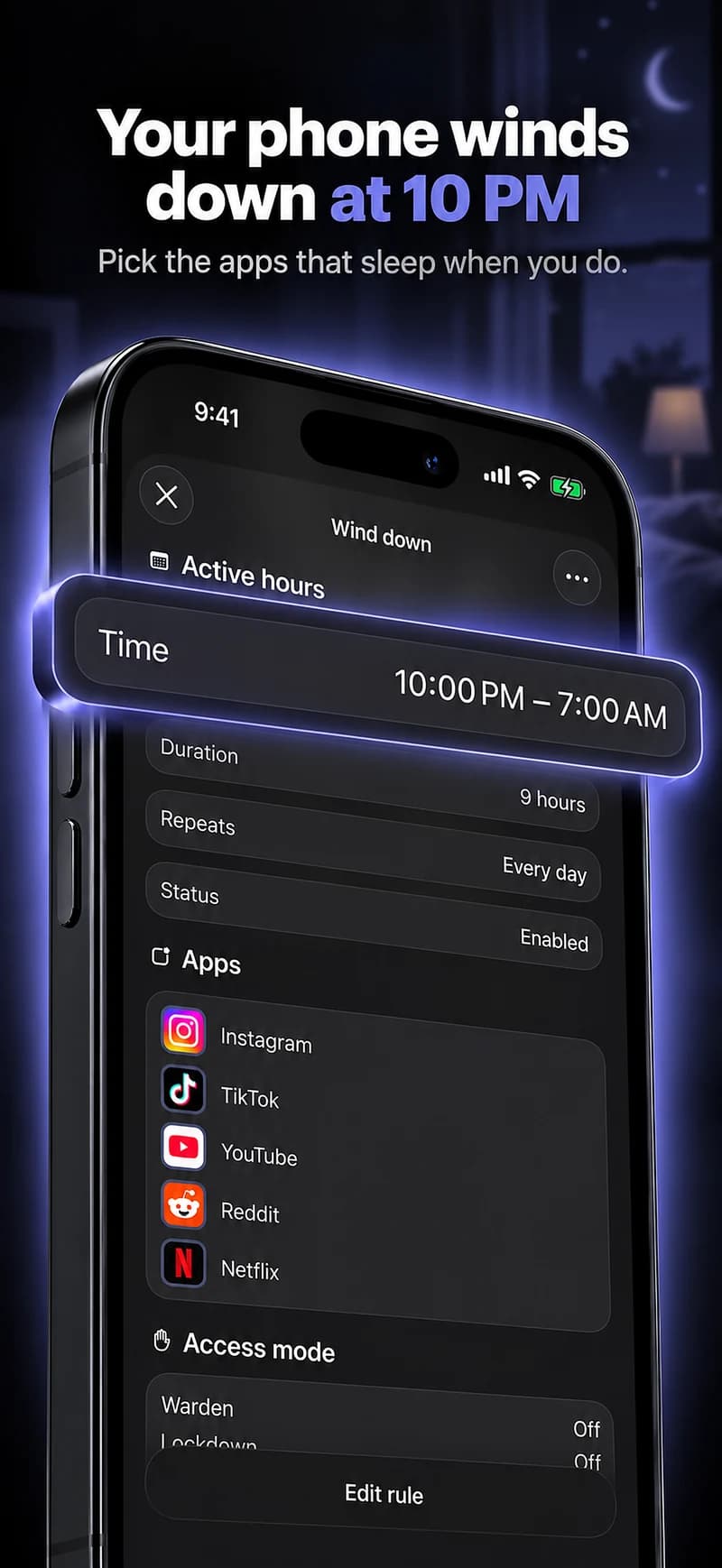
Keep screen-time evidence separate from sleep evidence
Reported late-night use can show whether selected apps were active in a clock window. Recorded protection can show when a restriction was applied. Neither tells Warden exactly when you fell asleep, how often you woke or how rested you felt.
Review the app boundary for the job it can do. If sleep itself remains a concern, seek appropriate advice rather than interpreting a green chart or completed focus timer as evidence that the health issue is resolved.
Keep the phone experiment separate from the sleep result
Try an adjustable window before bed for selected feeds, then record only what you actually know: the rule was active, the report showed a certain amount of use, and you chose another activity. A block ending in the morning does not show that you slept for its entire duration.
Work patterns, care duties and other circumstances can affect the evening. Review the schedule with those realities in mind, and avoid turning one bad night into a conclusion about the tool. A phone boundary is not treatment for a sleep problem; use appropriate clinical advice for ongoing sleep concerns.