Warden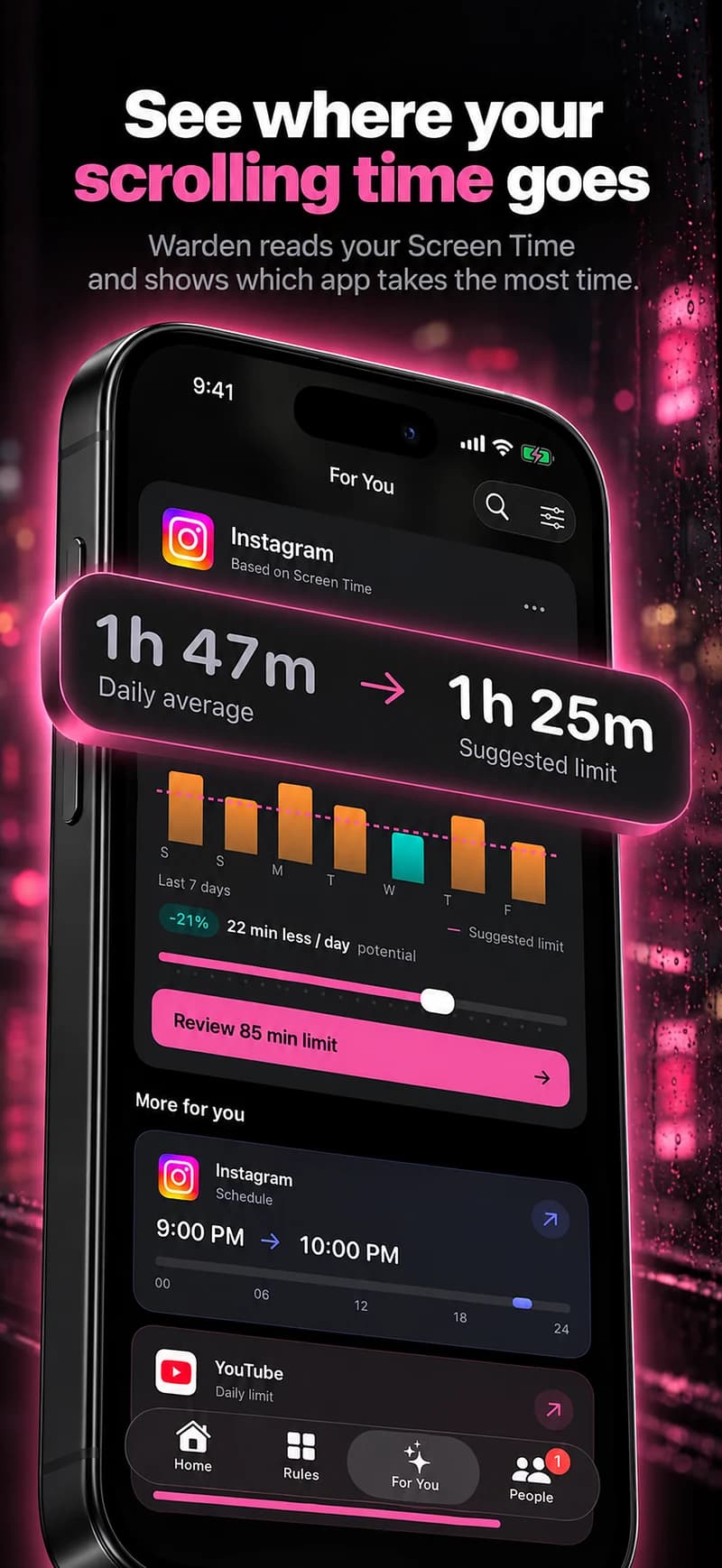
Set a daily allowance in Screen Time
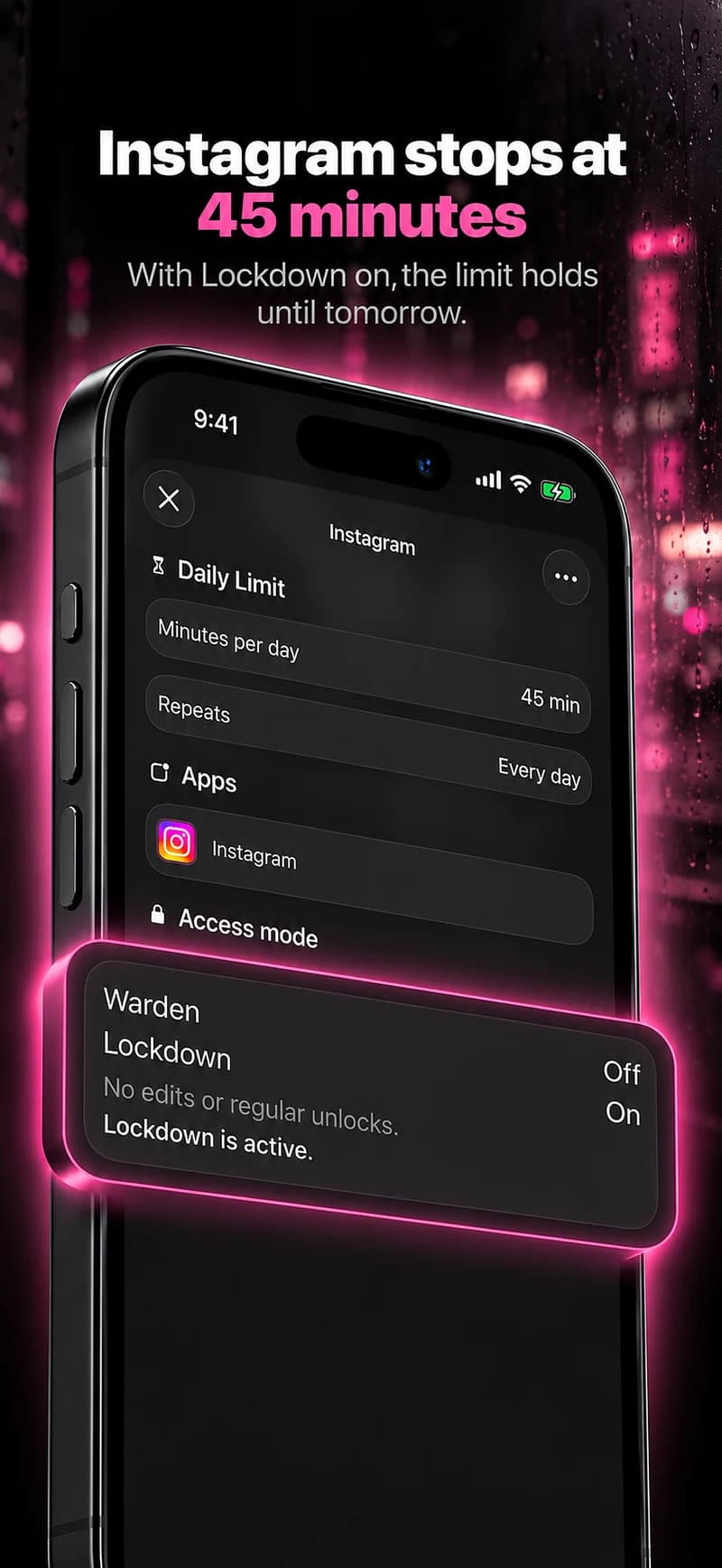
On iOS 27, start in Settings > Screen Time > Time Allowances. For a recurring block, open Screen Time Schedule. On iOS 26, use App Limits for daily budgets and Downtime for a schedule. Check the selected apps and how you can request or grant extra time.
When several apps share one allowance, the displayed minutes are for the group. Review the selection and the category or daily total before assuming every app receives that time separately.
Reference: Apple: set schedules and app allowances
Use a schedule when timing is the problem
A daily allowance does not reserve a particular hour. You can spend the whole allowance during the time you intended to study. A recurring window is more appropriate when the goal is “no feeds during revision” rather than “no more than this much today.”
For example, keep selected social apps closed from 7 to 8 on study evenings, while leaving maps and essential communication available. Pick times that reflect actual commitments. A schedule copied from someone else is only a starting point.
Review apps, categories and websites
A category can be convenient, but may include tools you use for school or work. An individual selection gives more precision but needs review when your app habits change. Do not assume the name of a category tells you every app currently included.
Also consider the web version of a selected service. App access and website access are separate scopes. Check what the blocker supports and what you actually selected rather than assuming that an app rule closes every browser route.
Add support only where you need it
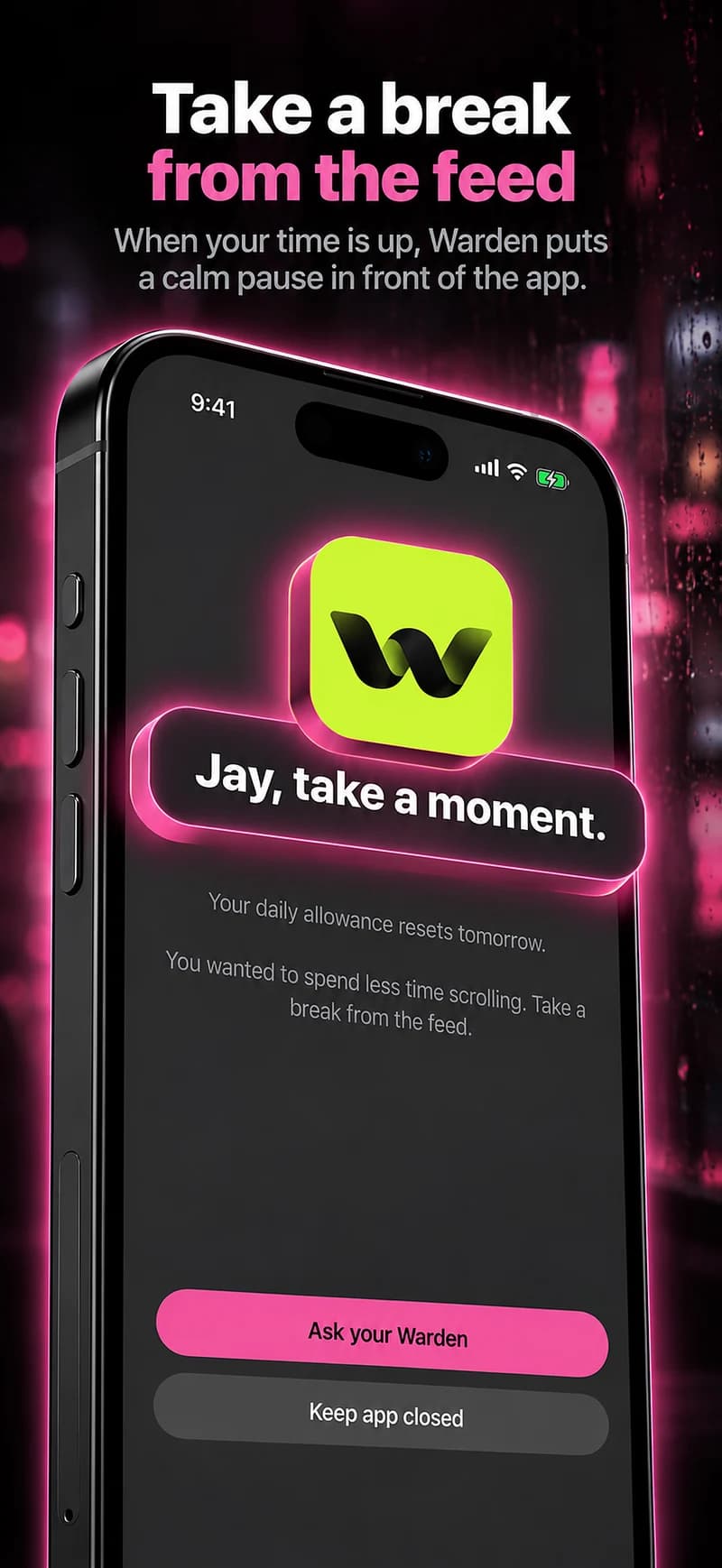
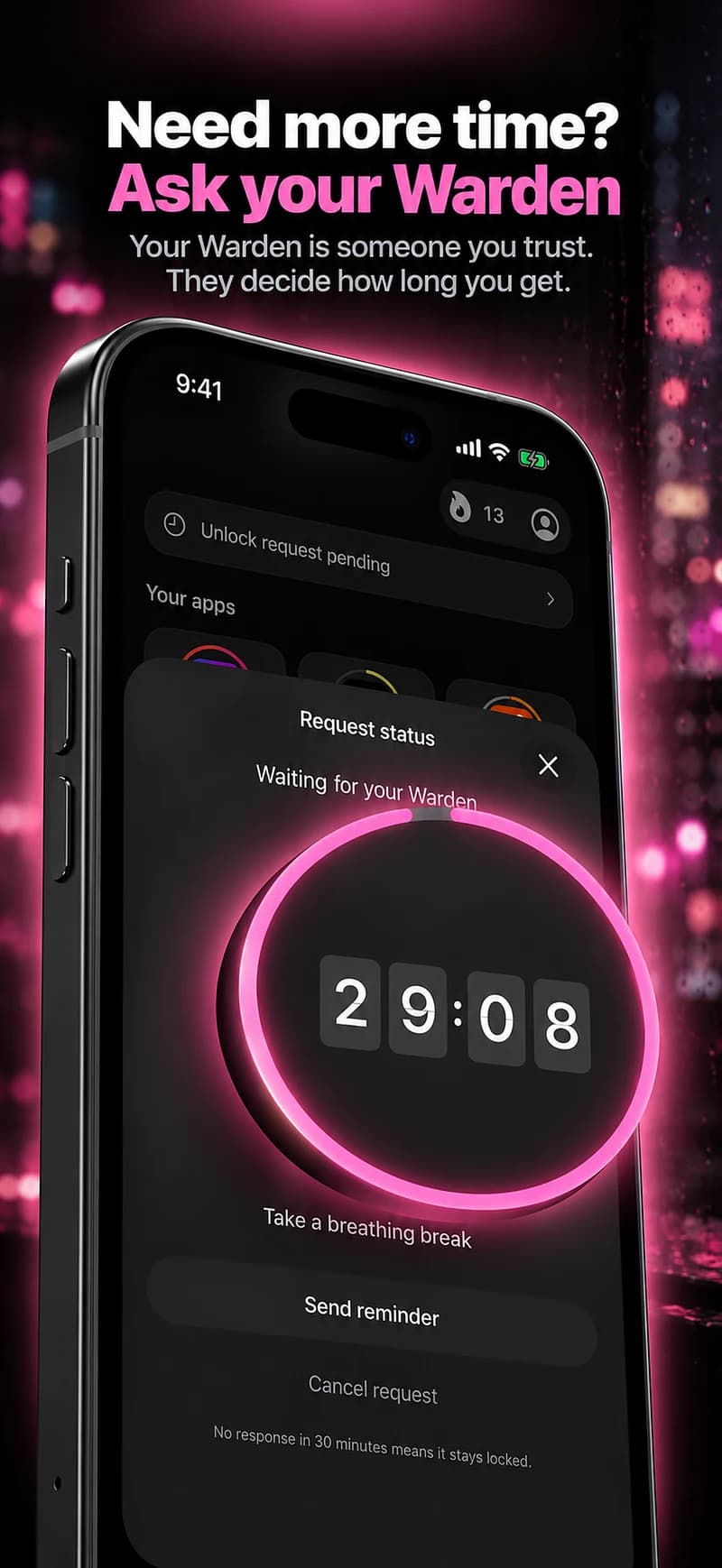
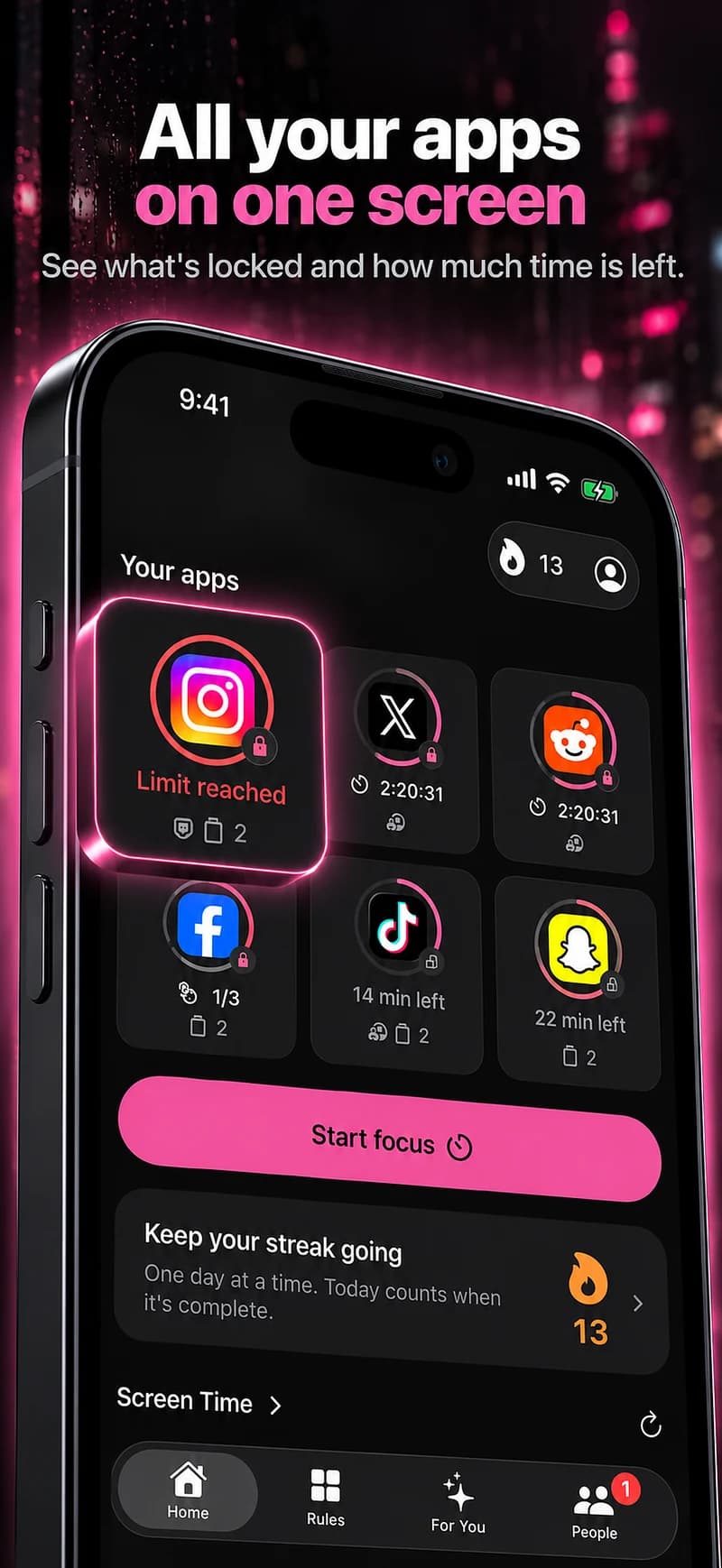
Warden lets you review personalized suggestions or create manual daily limits and schedules. A connected Warden can review ordinary early-access requests; a hard-stop commitment can keep ordinary early access unavailable until the selected end.
Test one block on the actual phone, then review the readings and exceptions. If the rule mostly catches useful activity, narrow the selection. If you repeatedly use ordinary early access for the distraction you meant to avoid, consider a different agreement rather than simply adding more apps.
A smaller first selection
For an evening reading window, you might choose the two feeds you repeatedly open while leaving messages and your reading app available. Review the actual selected apps, not only a category label. The aim is to remove an interruption while preserving the reason you still need your phone.
Test one evening, then look at what was inconvenient. If you kept switching to the same service in a browser, review that access path separately. If a useful app was caught in a category, inspect the scope before adding another overlapping rule. Keep the rule understandable enough to edit later.