Skip to content

App limits

How to block YouTube Shorts on iPhone

You can limit the Shorts feed inside YouTube without blocking the whole app. YouTube’s own limit is a reminder you can dismiss. Warden takes a different approach: its app rule blocks YouTube as a whole, including Shorts and long videos. Choose based on what you need to keep available.

In this guide

Set YouTube’s Shorts feed limit

Sign in to the YouTube app, open the You tab, then Settings and Time management. Choose Shorts feed limit and select a duration. YouTube’s current instructions include a zero option. At the limit, YouTube shows a reminder that you can dismiss or ignore. This is useful when a prompt is enough; it is not a commitment that prevents you from continuing. Labels can vary with language and app version.

Reference: YouTube: Shorts feed limits

When you need all of YouTube closed

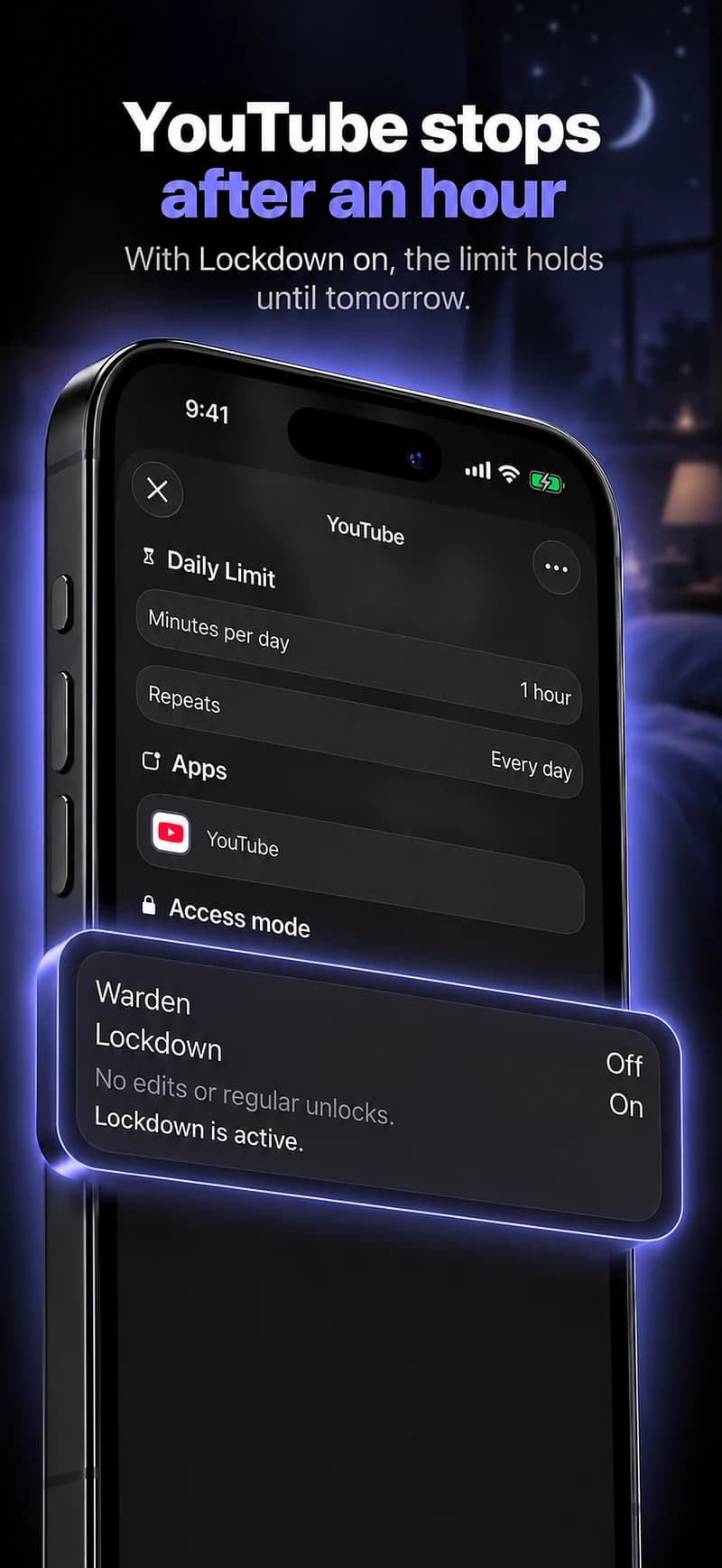
For study or bedtime, use a Screen Time allowance or a scheduled Warden block for YouTube. Read the version-specific iPhone steps before setting it up. A whole-app block also stops access to lessons, music and other videos inside the app. Warden cannot inspect the video you intended to watch or let only educational videos through.

YouTube app blocking steps

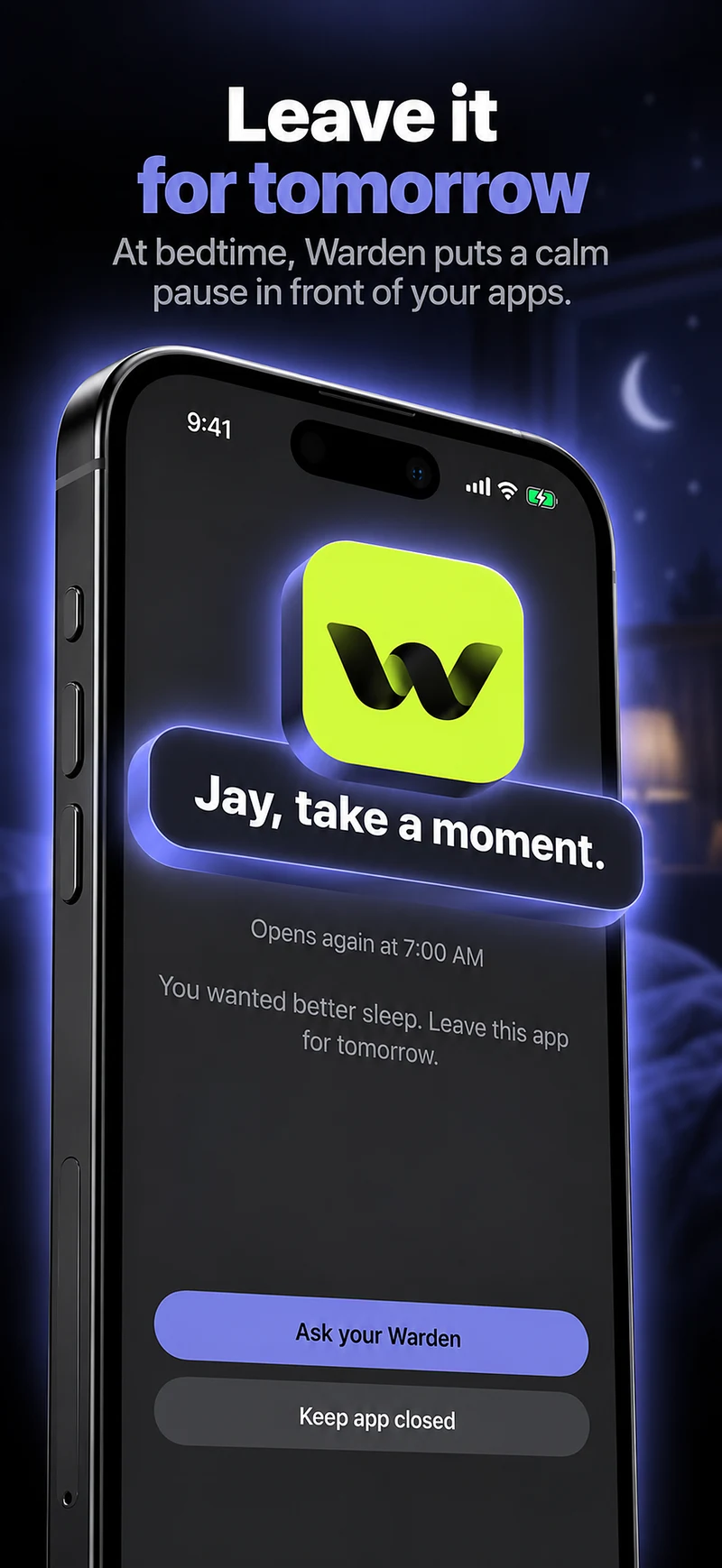
Editing a schedule that blocks apps from 10:00 PM to 7:00 AM every day

Check the browser route too

If you reopen YouTube in Safari, the app-only rule has not covered your actual habit. Review website selections separately and test the browser you use. A phone rule also does not automatically cover a laptop, television or another phone. Keep the scope practical rather than assuming a single setting removes Shorts everywhere.

Example: keep the tutorial, stop the next scroll

Suppose you need a tutorial before a 7 PM study session. Watch the chosen lesson first, then schedule YouTube to stay closed during the session. If you need lessons throughout the hour, try YouTube’s Shorts reminder instead and review whether you ignore it. A useful rule preserves the task you came to do.
Can you block only Instagram Reels?

Set it up without adding unnecessary rules

Daily limits, schedules and focus sessions

Install Warden and connect Screen Time when iOS asks. Then open Rules and tap the plus button.

Choose the apps or scope involved in this particular interruption. Use an allowance for total use, a schedule for recurring hours, or a session for a one-off task.

What Standard, Warden and Lockdown do

Choose Standard when you want to manage the limit yourself. Choose Warden when a person you trust should review early-access requests. Choose Lockdown to keep ordinary early unlocks off until the block ends.

Choose the access mode, then hold the save button to set the rule. Try a short block before using a long one. Emergency access remains separate from ordinary unlock requests.

How Warden approval works

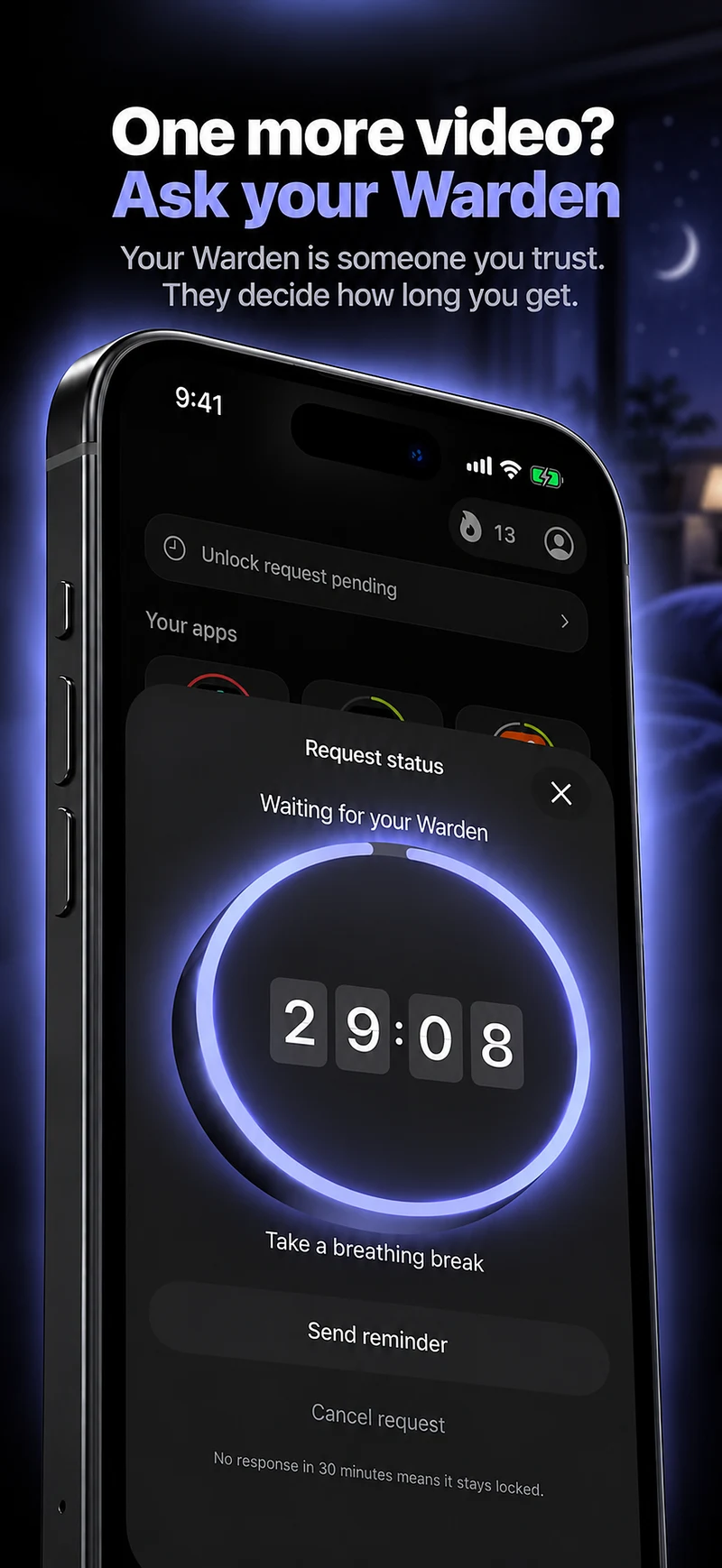
Choose how many minutes you need, add a note and hold to send. If nobody answers within 30 minutes, the request expires and the app stays locked.

An approval applies to the scope and time shown in the app. A declined or unanswered request does not lift the block. Emergency access remains a separate option on your device.

Common questions

Can I permanently disable Shorts with Warden?
No. Warden does not remove features from YouTube. It can restrict the selected app during a rule; YouTube’s own Shorts feed limit is a separate control.
Does this also block Instagram Reels?
No. Instagram is a separate app. Review its own settings or select it separately in your app rule if Reels is part of the same scrolling habit.