Skip to content
Sunlight filtering through a lush green canopy

Block the apps you can’t put down.

Block distracting apps on your iPhone with suggested limits and Lockdown.

Download on the App Store
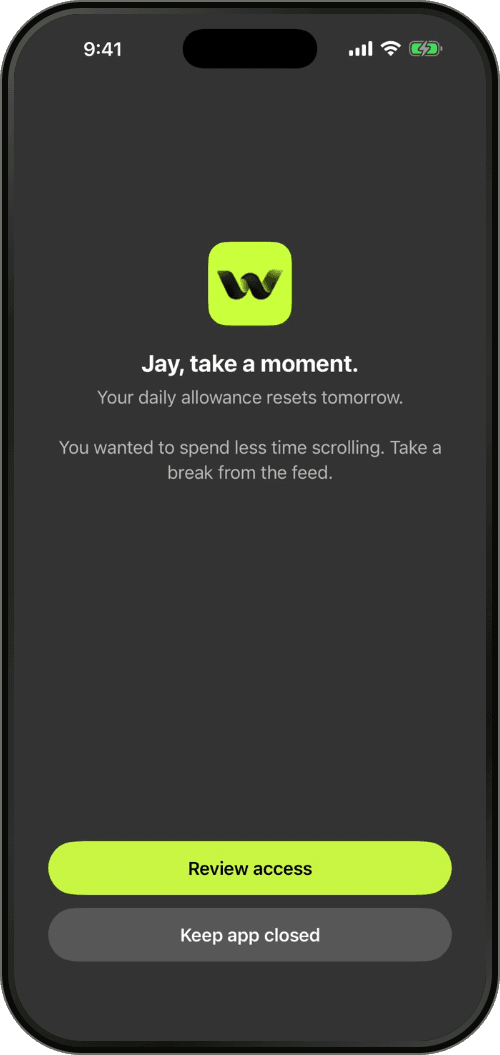
Warden block screen shown when an app’s daily limit is reached

Warden for iPhone

See how Warden works

A quick check becomes an hour of scrolling. Warden gives your feeds a stopping point, so you can get back to what you meant to do.

Daily limits, schedules and focus sessionsRead the setup guide

A short video showing how Warden works: it finds the app taking most of your day, sets a daily limit, pauses you when you open a blocked app, lets someone you trust approve extra time, and keeps the hardest apps closed with Lockdown.

01 / USAGE INTELLIGENCEYOUR PATTERNS. YOUR PLAN.

Know what
to block.

Turn your Screen Time patterns into personal recommendations: which apps, how long, and when to block. You make the final call.

Explore usage intelligence
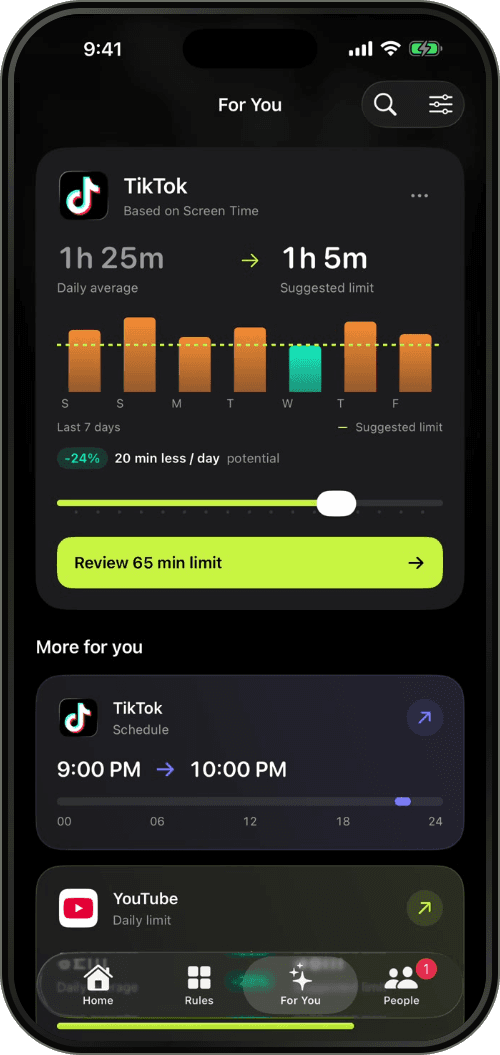

Warden For You screen suggesting a lower daily limit for TikTok
02 / LOCKDOWN MODESYSTEM-LEVEL APP BLOCKING

Make the
limit stick.

Apple’s Screen Time shields block your apps. Lockdown keeps ordinary early unlocks and rule edits off while active. No partner needed.

Explore Lockdown
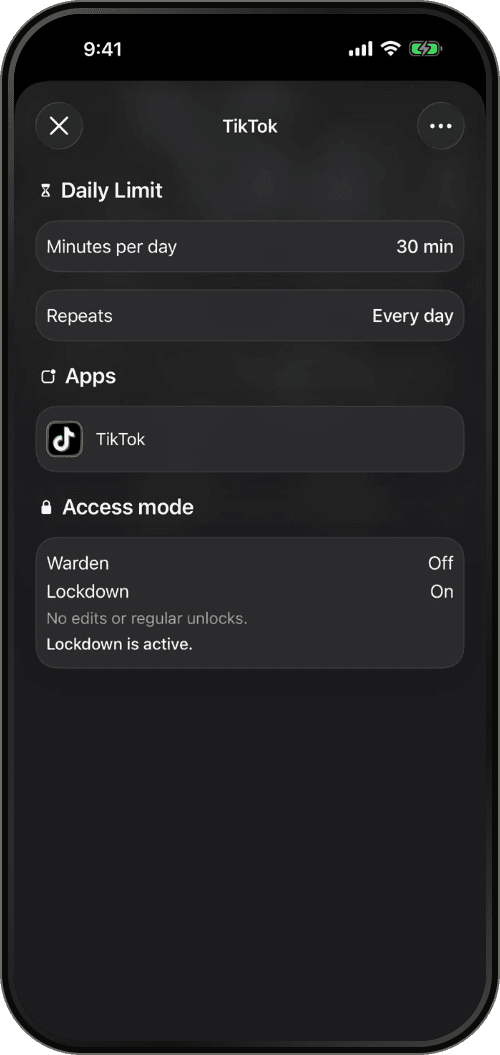
A TikTok daily limit with Lockdown turned on
03 / Daily limits

Give the feed
a finish line.

Choose your apps and a daily allowance. Warden blocks them when time’s up.

Explore app limits
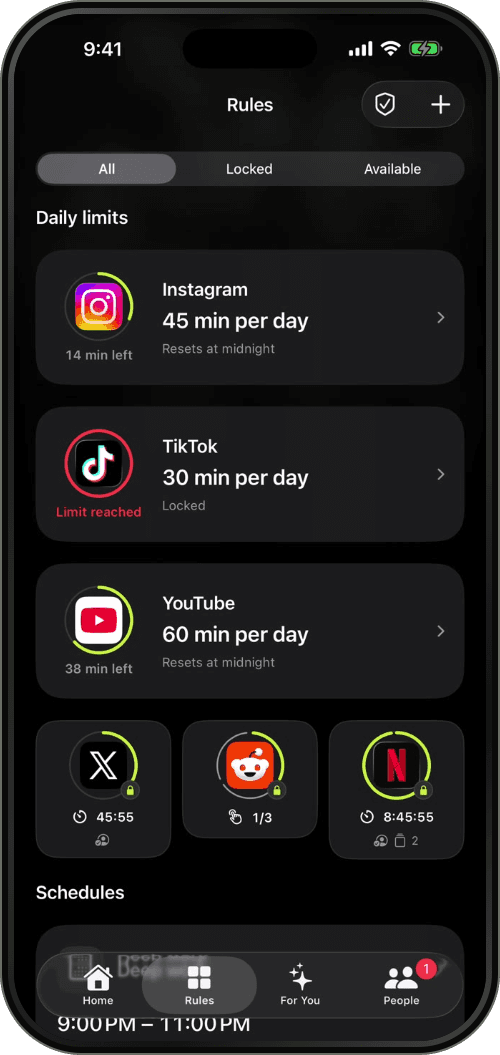
Warden Rules screen listing daily limits for Instagram, TikTok and YouTube
04 / App schedules

Your evenings.
Yours again.

Keep social apps out of bedtime, work, or dinner. Set a schedule. Warden takes it from there.

Explore schedules
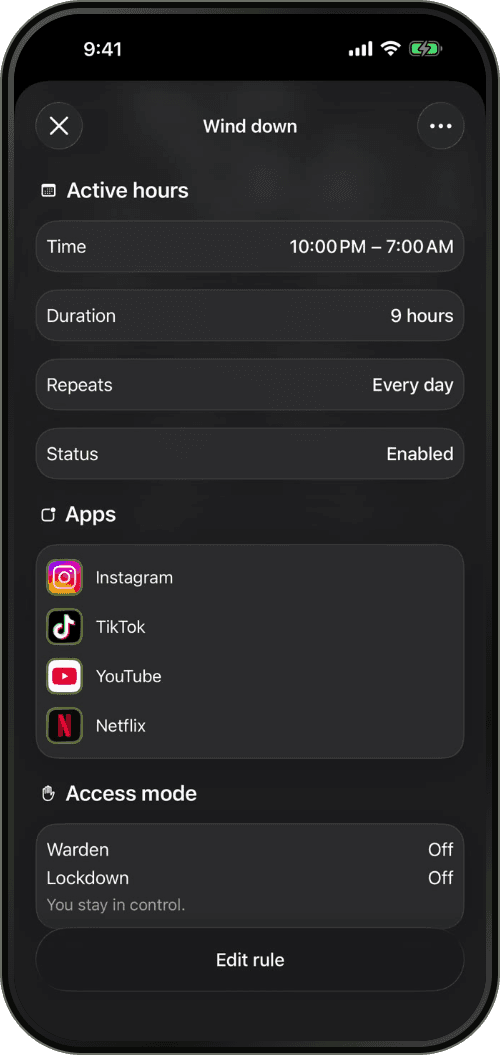
A Wind down schedule that blocks apps from 10:00 PM to 7:00 AM
05 / Focus sessions

One thing.
Your full attention.

Choose your distracting apps and start a focus timer. Give your next task a clear stretch of uninterrupted time.

Explore focus sessions
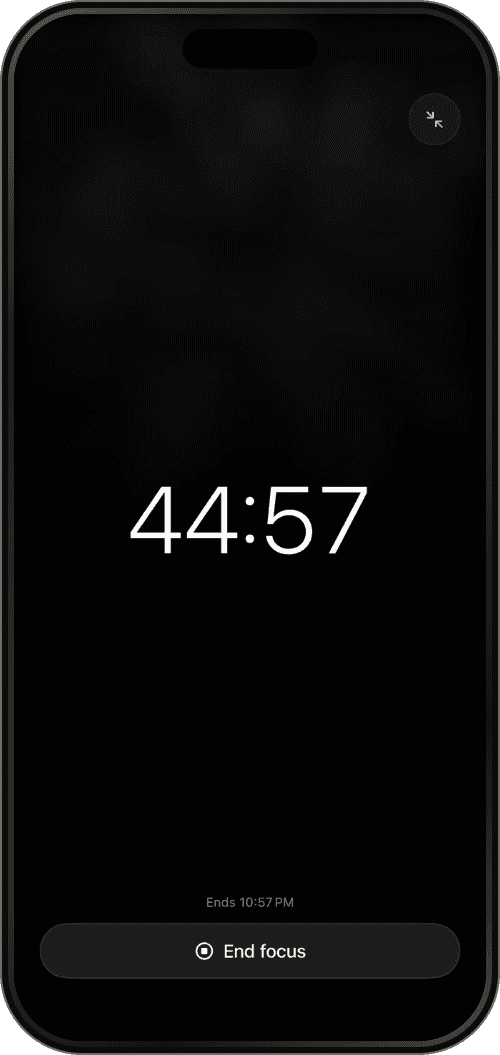
A Warden focus session timer
06 / YOUR WARDEN

Some limits
need a friend.

Want someone in your corner? Add a trusted person to approve early access for the rules you choose. Standard and Lockdown work on your own.

Meet your Warden
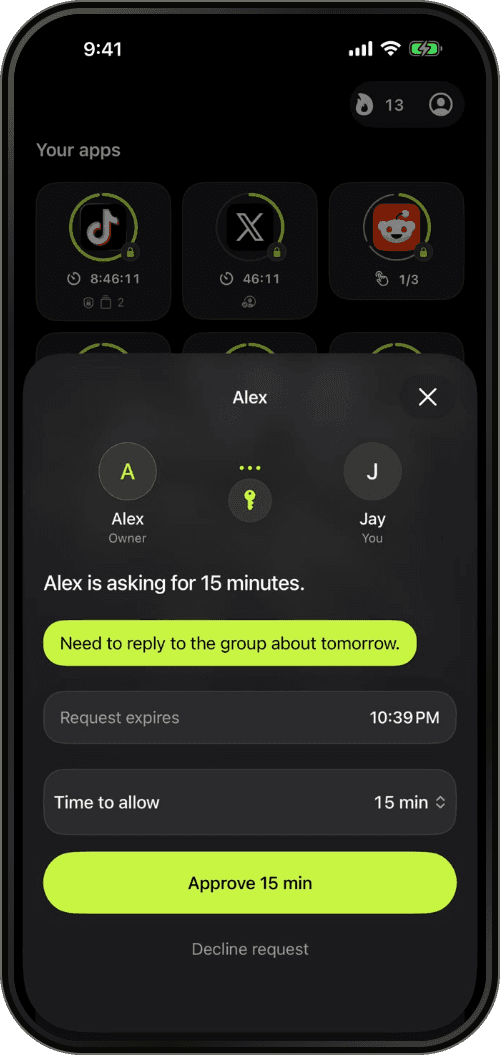
A request for 15 more minutes, waiting for the Warden’s approval
Warden For You screen suggesting a lower daily limit for TikTok

HOW IT WORKS

App blocking that fits your day.

Read the setup guide

Pick apps and a limit.

Choose the apps, then the minutes per day or the hours to block them.

Choose how strict.

Standard lets you unlock early yourself. Warden asks someone you trust. Lockdown allows no early unlocks.
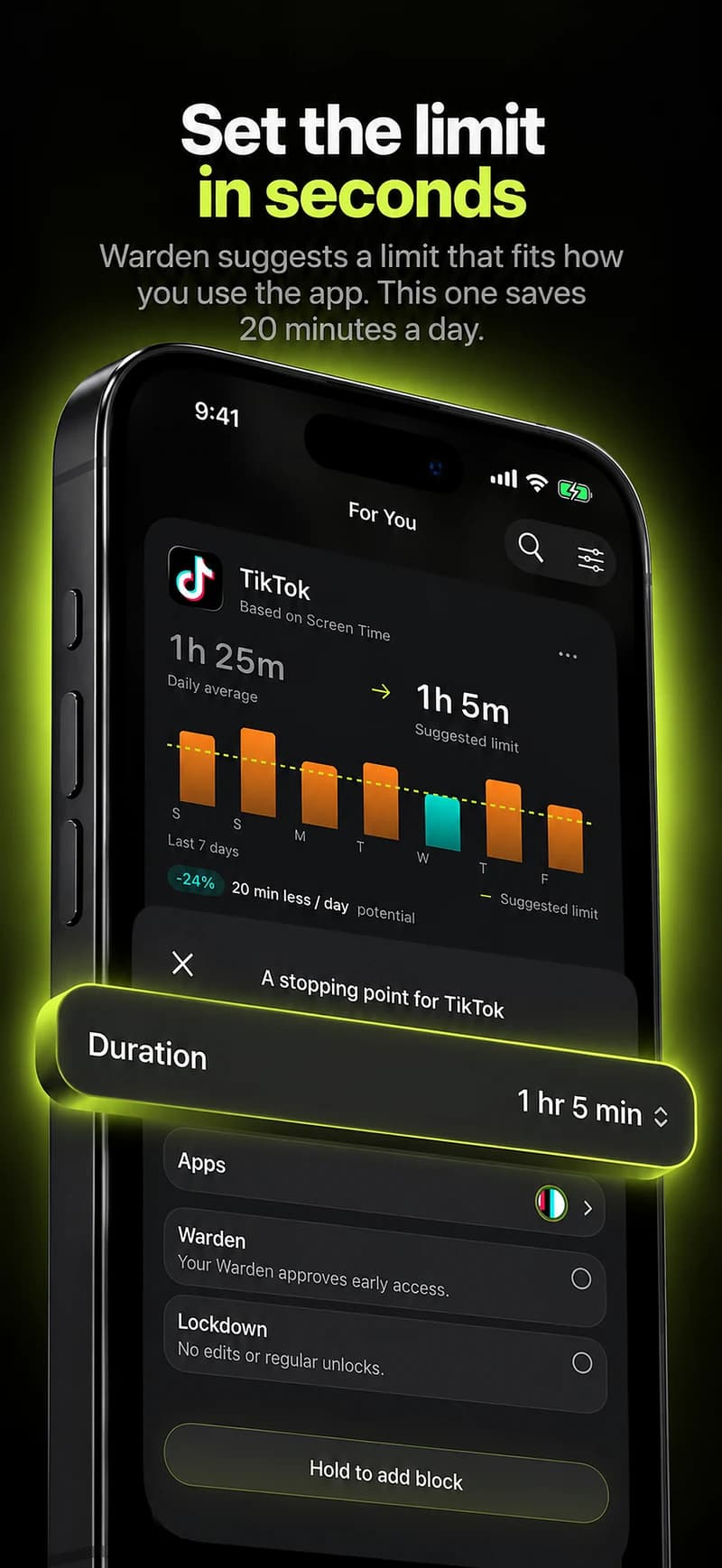
Pick apps and a limit.

Open a blocked app.

Warden’s block screen appears instead and says when the app opens again.
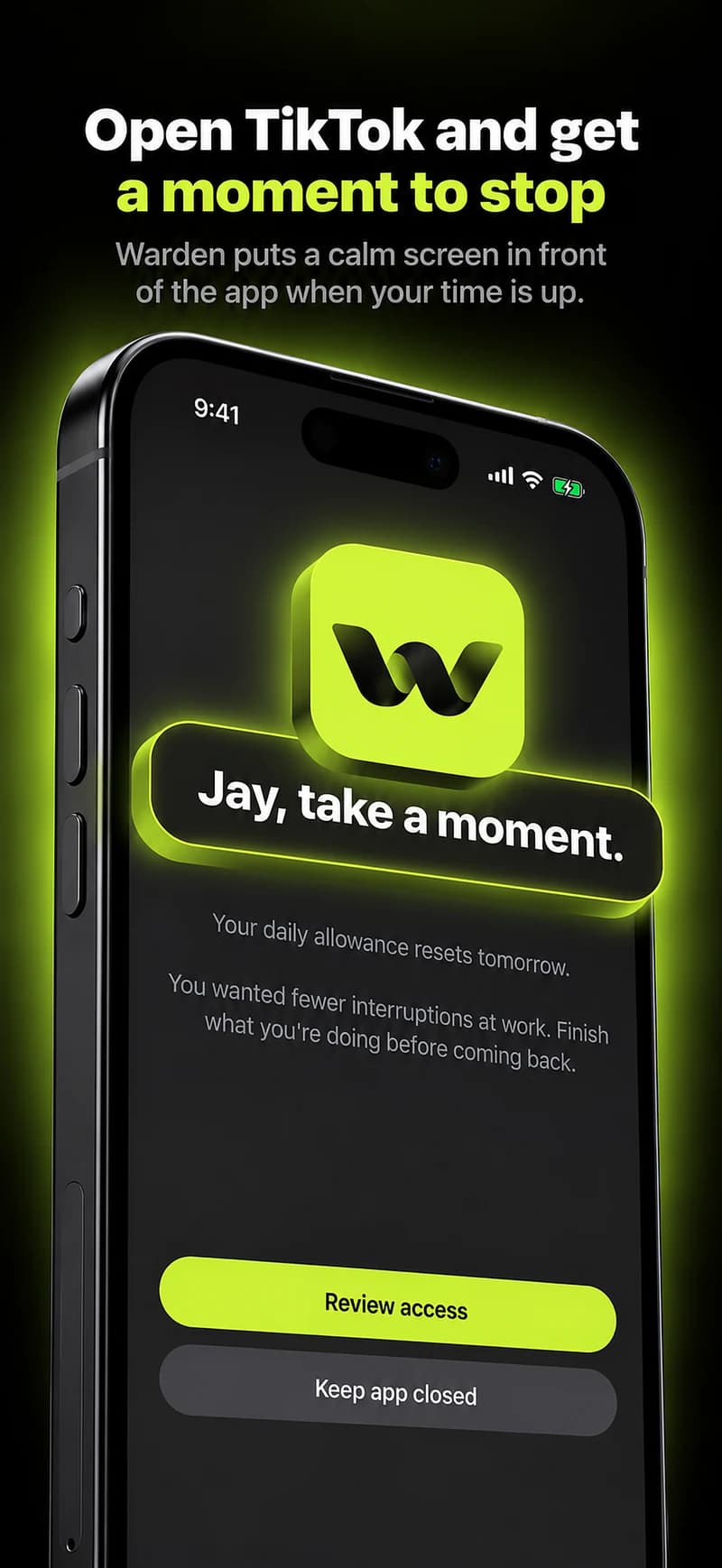
Open a blocked app.

Ask for a few minutes.

In Warden mode, your Warden approves or declines. No answer keeps the app locked.
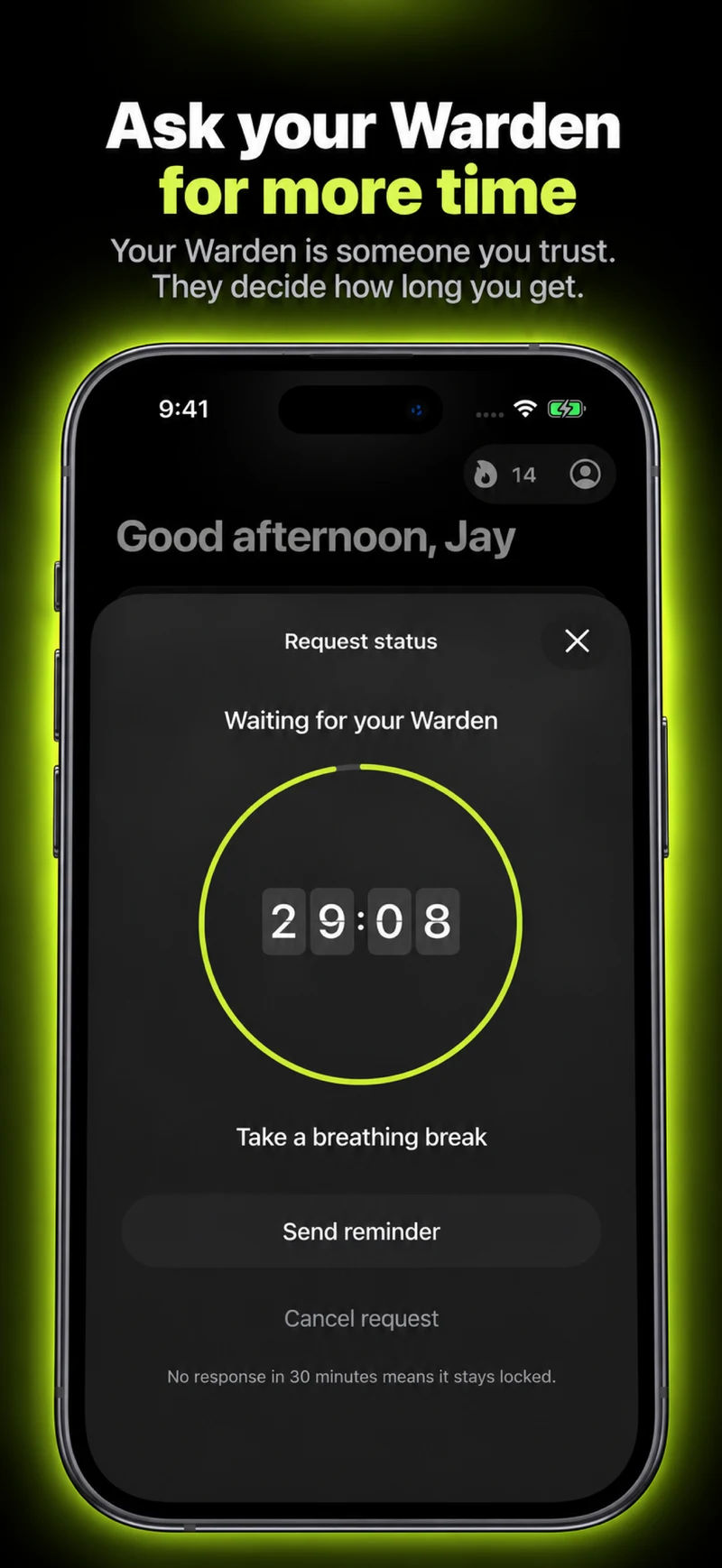
Ask for a few minutes.In Warden mode, your Warden approves or declines. No answer keeps the app locked.
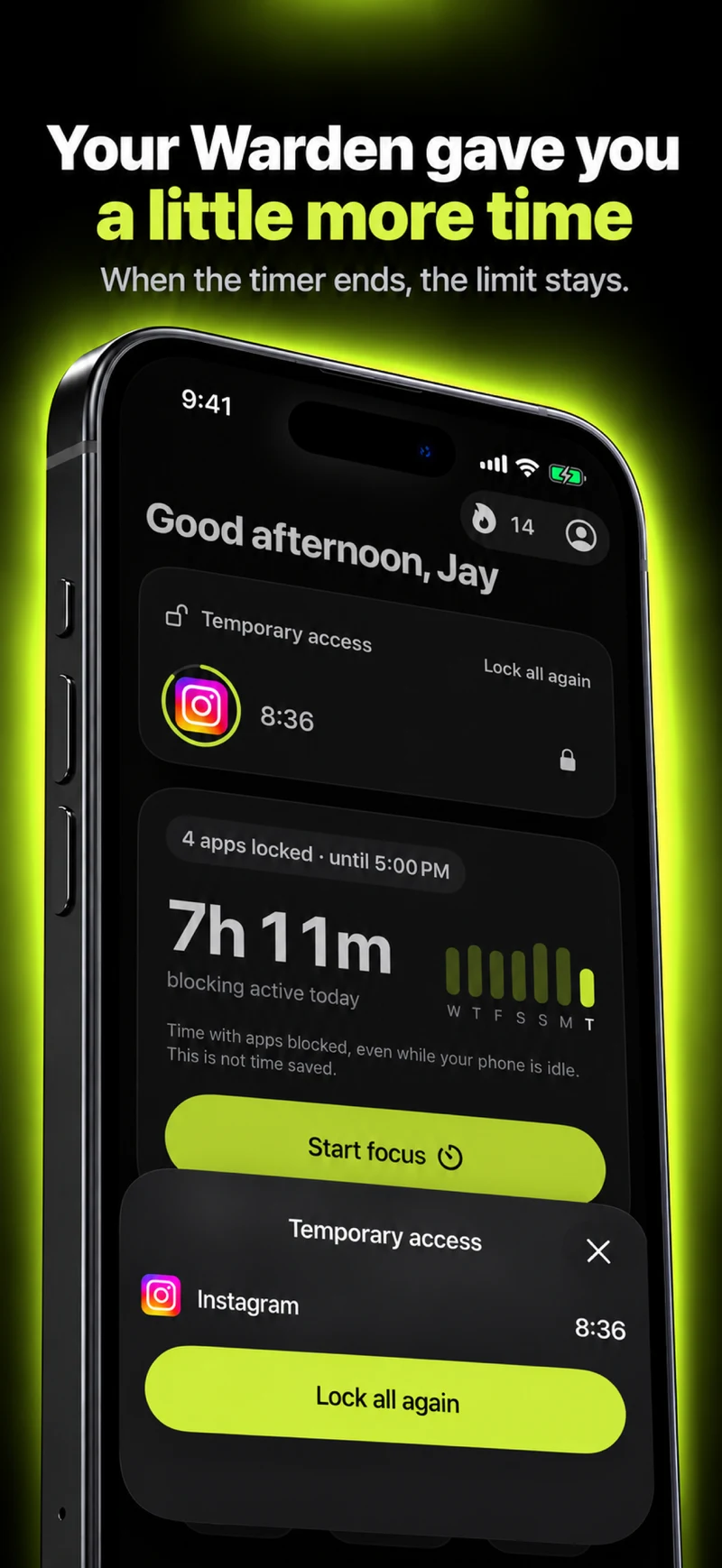
LESS SCROLLING. MORE LIVING.

Less scroll.
More life.

DownloadAvailable for iPhone.

Questions

A few questions

Contact Warden
What is the Warden app?
Warden is an app blocker for iPhone. Choose the apps you want to use less and give them a daily limit or blocked hours. When time is up, Warden blocks them through Apple’s Screen Time system. It works on your own, and Lockdown allows no early unlocks.
What is Lockdown mode?
Warden uses Apple's Screen Time system to block selected apps. Lockdown prevents ordinary early unlocks and edits to active rules until the block ends or the daily limit resets. No accountability partner is needed.
What does usage intelligence recommend?
Warden uses your goals and available Screen Time patterns to recommend which apps to limit, a daily allowance, recurring block times and a suitable protection mode. Each suggestion explains its reasoning. You review and approve every rule.
Can I use Warden on my own?
Yes. Use Standard for flexible limits or Lockdown for a firmer commitment on your own. A trusted person is optional, only for rules where you choose Warden approval.
Can Lockdown be bypassed?
Emergency access remains available. Lockdown makes an active rule harder to bypass in Warden; it does not prevent you changing iOS permissions.
What do usage-based recommendations need?
Usage-based recommendations need iOS 26.4 or later, supported Screen Time data access and enough history. Without that access, you can still use goal-based suggestions and create manual rules.
Does my Warden need Pro?
No. You need Pro for rules that use Warden approval, but the person responding can do that for free. They need Warden on a compatible iPhone or iPad and can accept your invitation as a guest without a separate sign-up or sign-in, or use an existing Warden account.
What if I need an app urgently?
Emergency access is available on your device, including in Lockdown. It is separate from an ordinary early-access request.
Can my Warden see my messages?
No. They receive your request and any note you include. They cannot see your screen, private messages or browsing.
Can I make my own rules?
Yes. Choose the apps, timing and access mode yourself. The free plan includes unlimited manual Standard rules and two personalized blocks. Suggestions are reviewed before they become active.
Which devices does Warden block apps on?
Warden blocks apps on the iPhone or iPad where it is installed and authorized through Screen Time. It requires iOS 17 or iPadOS 17 or later. The Apple Watch companion requires watchOS 10 or later and sends Digital Detox commands to its paired iPhone. Siri and Shortcuts provide Digital Detox actions under the app's access rules. Warden does not block Mac, Android or Watch apps.
Does Warden work offline?
Saved blocks, schedules and focus timers work on your device. Signing in, purchases, synchronization and your Warden’s remote approval need an internet connection.